PROJECT - POTION COMMOTION
ROLE: LEAD UI/UX DESIGNER
PROJECT-LENGTH: 4.5 WEEKS
TEAM-SIZE: 30
GENRE: COOKING SIM

Core Tasks
-Creation Of UI/UX Diagrams
-Headed The Interface's Design
-Managed Artists And Programmers
OVERVIEW
Potion Commotion is a 3D Cooking Sim created in Unity; gameplay revolves around the player completing potion orders by taking ingredients to workstations and playing their respective minigames then adding it into a cauldron where it will create the potion.
In this project I was the sole UI/UX designer and therefore was the lead of the entire UI department; in this role I was responsible for the research, design and testing of the project’s user interface as well as a few administrative duties. This project had a lot of our members wearing more than one hat, so I had the luxury of leading a small team of concept artist who were tasked to create the 2d assets and programmers who would handle the implementation into engine. Weekly meeting were held with this group where we did stand ups on how development was coming along and if there were any issues with production or confusion around documentation such as the asset list.
In-Game HUD
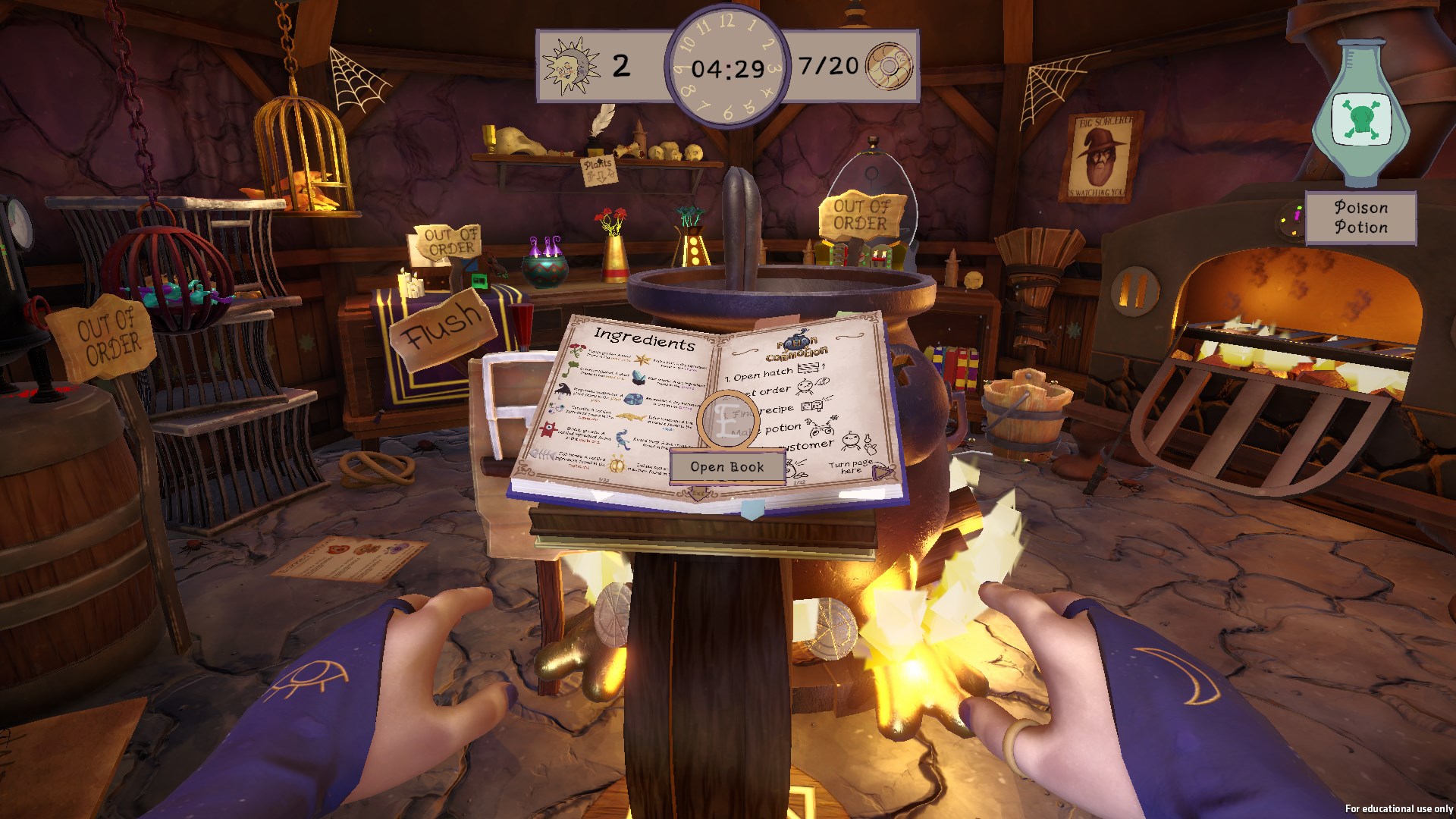
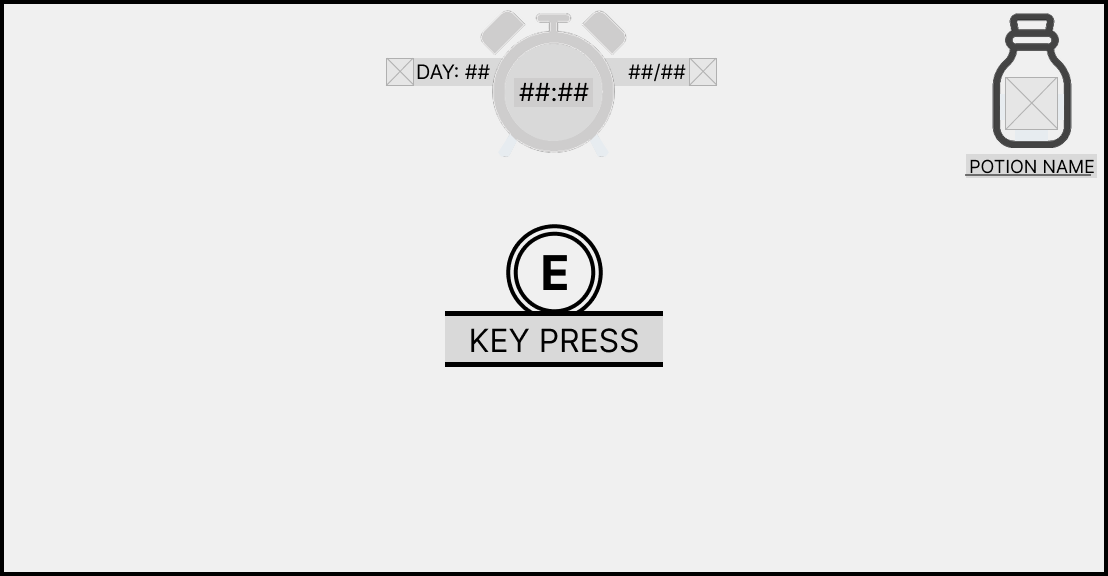
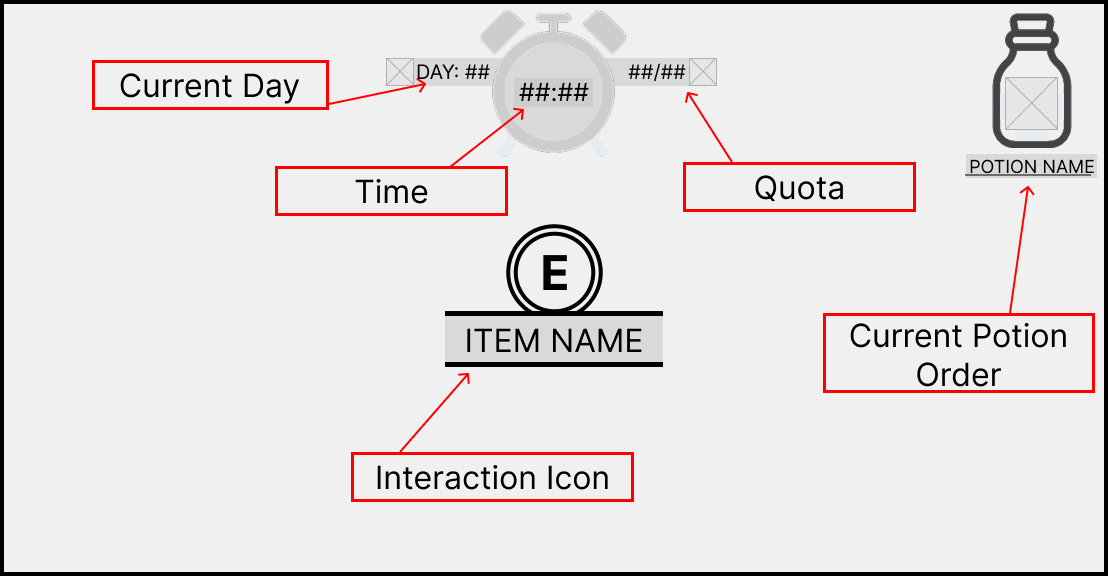
The In-game HUD is comprised of several elements.
Whenever a player is looking at an interactable object like an ingredient or workstation, than the interaction icon will appear in the centre of the screen. It will contain a text element which is dependent on what the player is looking at. For example, if the player is looking at an ingredient, then it will be the ingredients name. However, the interaction also has an image above the text which will either be the icon of the ingredient or the letter E if it is a workstation
In the top right corner is the “current potion” widget which when the customer gains an order will contain the specific potion’s icon and the potion’s name so that the player can find the recipe in the recipe book.
At the top of the HUD contains three elements. The left bar is the current day that the player is on, the centre widget is a clock which counts down how long the player has until the day is up. The right widget is both how much money they have earned this day and what their daily quota is, these two were combined so that the player could easily see how much more money they need to earn to meet their quota.
In-Game Player HUD
Player HUD Wireframe
HUD Annotated
MINIGAME HUD
Each minigame has unique UI elements depending on the workstation as each workstation requires different actions to complete its minigame. However, all minigames share a HUD which contains information to help guide the player. At the top of the HUD an action prompt will be displayed which will summarise what the player has to do in the current stage, for example, the mortar and pestle minigame has the action prompt called “break it down” to convey to the player that they have to smash the ingredient. However, if this is not sufficient enough an information panel can be brought up with the “info” icon that allows the player so see the entire minigame broken down into stages with the action prompt as a title as well as a short description and video which will explain what the player has to do.
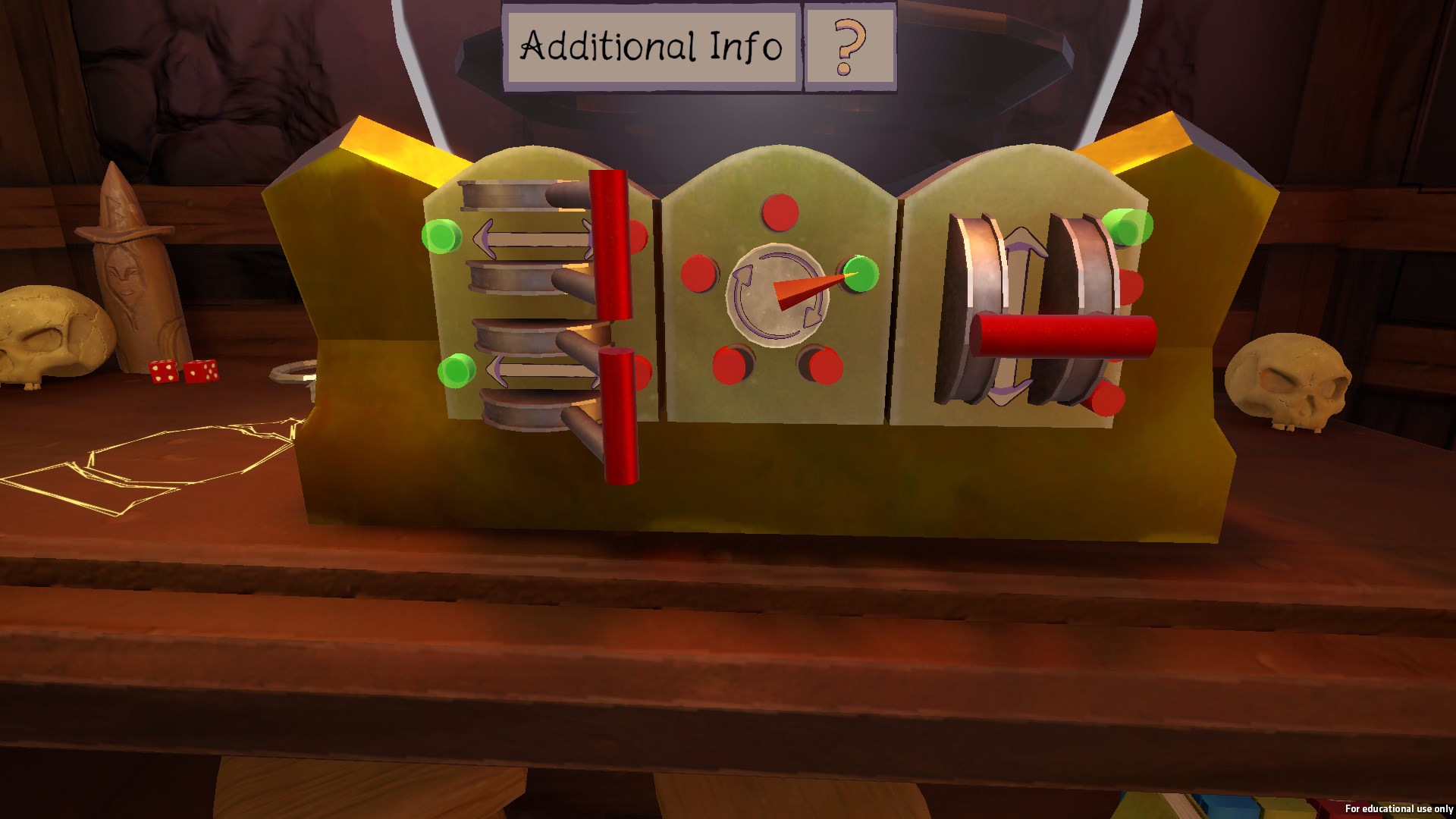
In-Game Minigame Hud
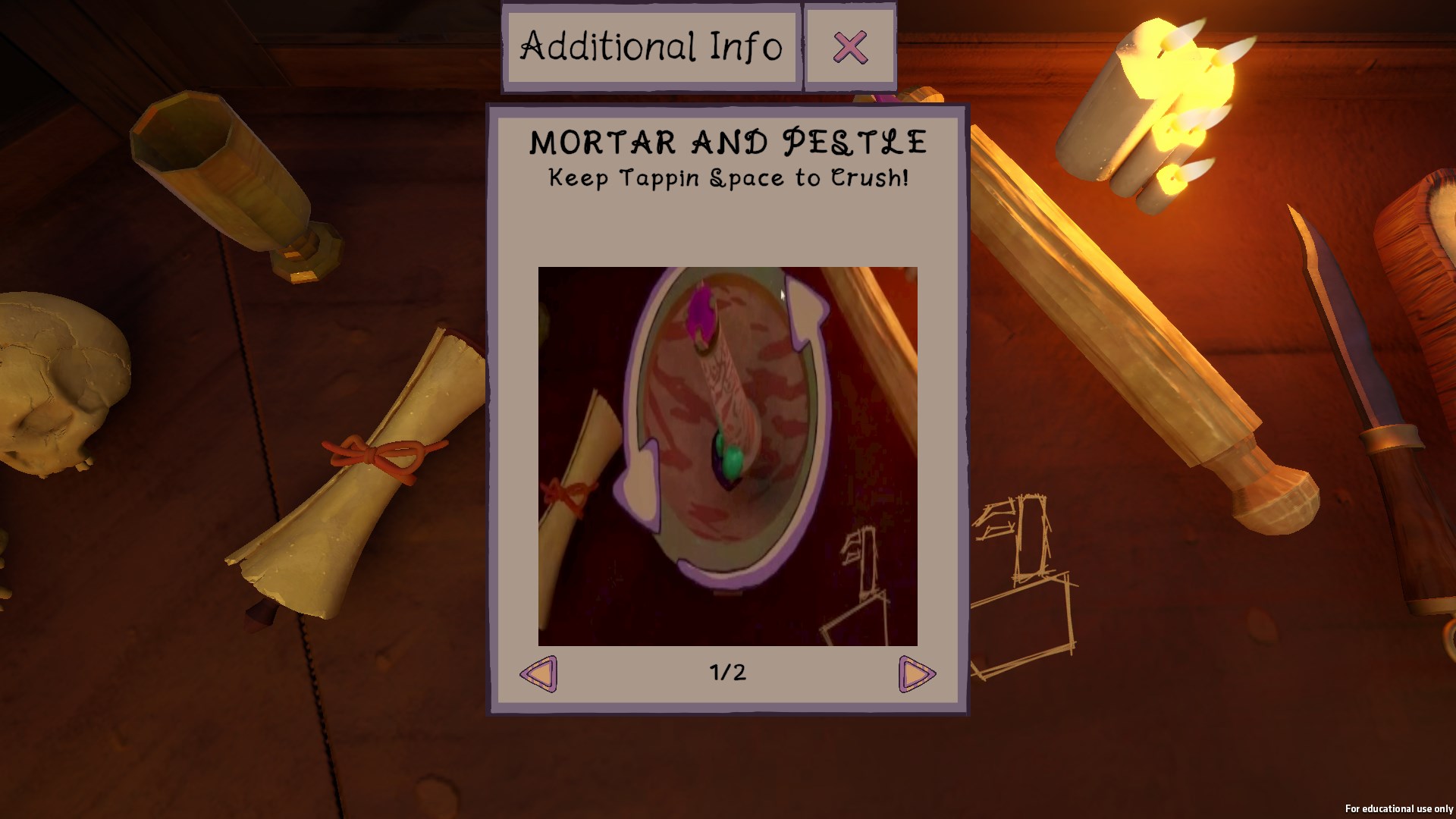
In-Game Minigame Panel
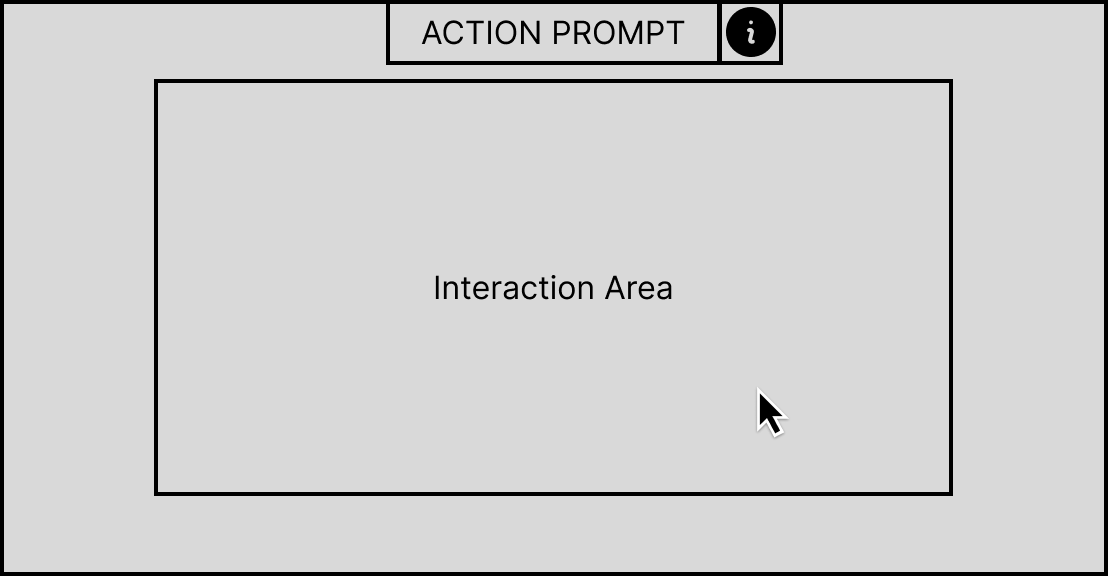
Minigame Hud
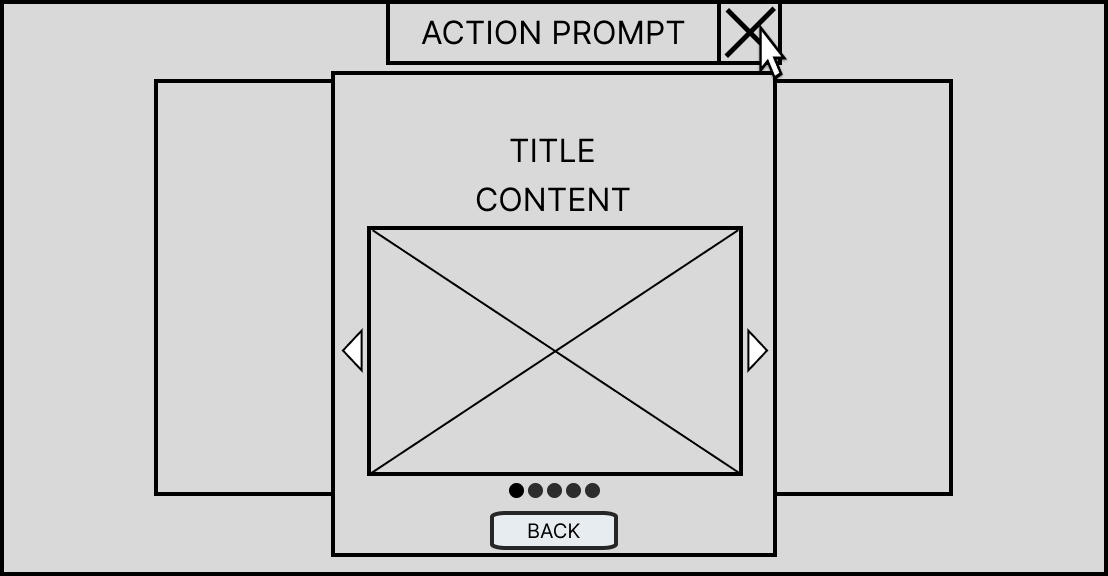
Help Panel
CHOPPING BOARD
When the chopping board minigame is started the player is given one of the minigame variations where dashed lines hover above the ingredient the player has placed in. The player must drag their mouse across the dashed lines to complete a cut, once all the cuts are complete then a new variation appears. The player must complete three round of this for the ingredient to be prepped and ready to be placed in the cauldron.
A dashed line was used because it symbolised separation often seen to represent cutting or tearing.
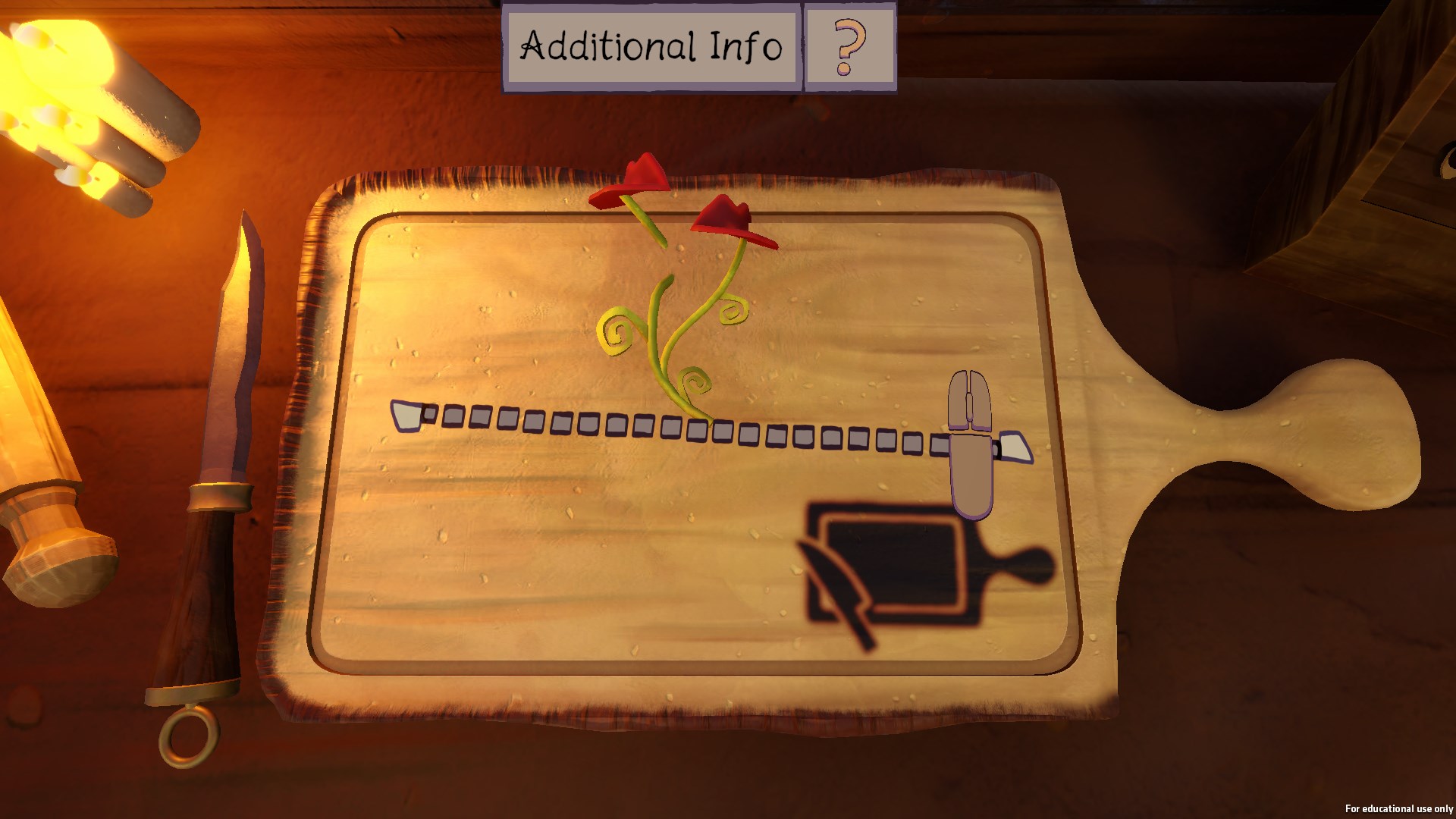
In-Game Chopping Board
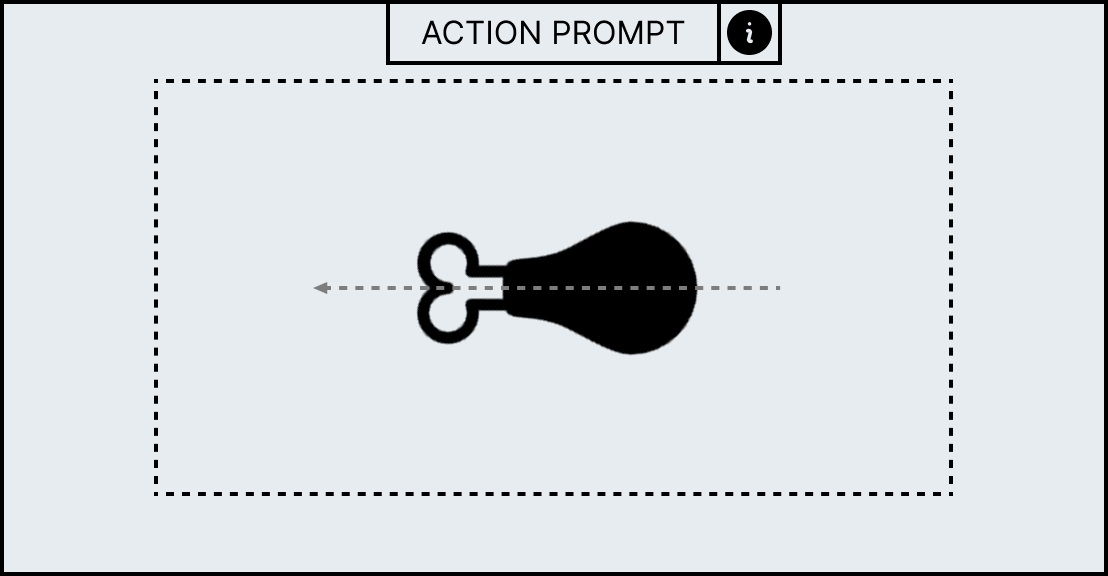
Variation 1 Wireframe
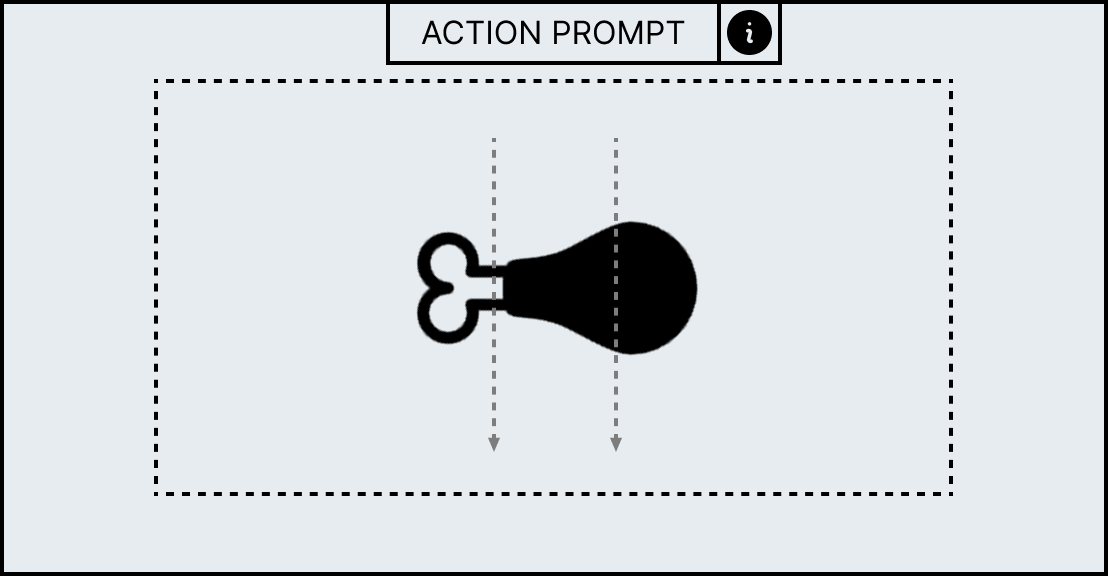
Variation 2 Wireframe
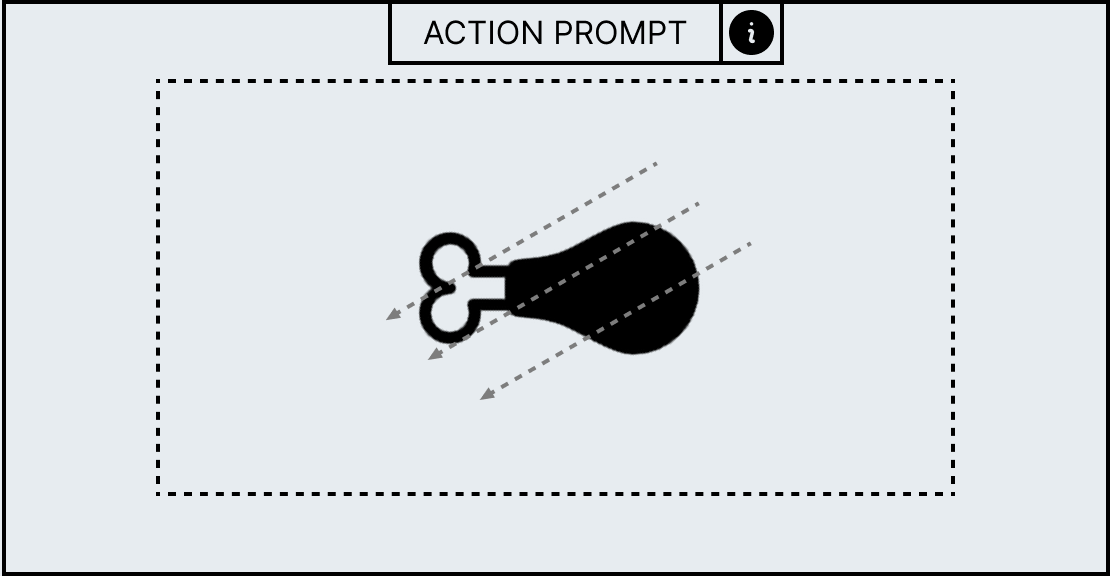
Variation 3 Wireframe
MORTAR AND PESTLE
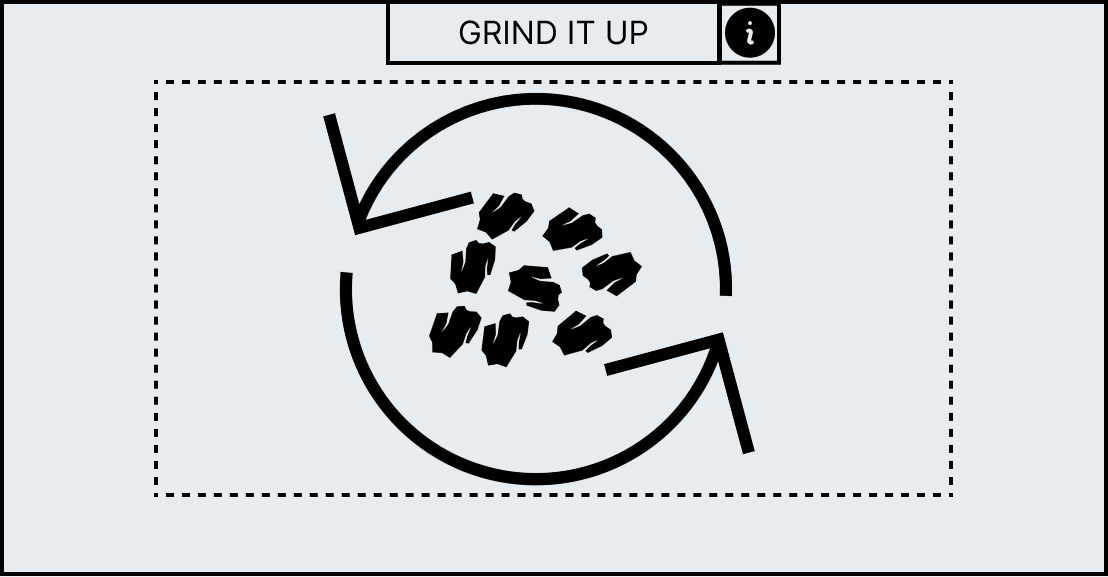
The Mortar and Pestle Minigame is broken into two stages; the first stage requires the player to mash the spacebar to smash the ingredient, then the second stage requires the player to hold mouse 1 while dragging their cursor in a circle to grind the ingredient down.
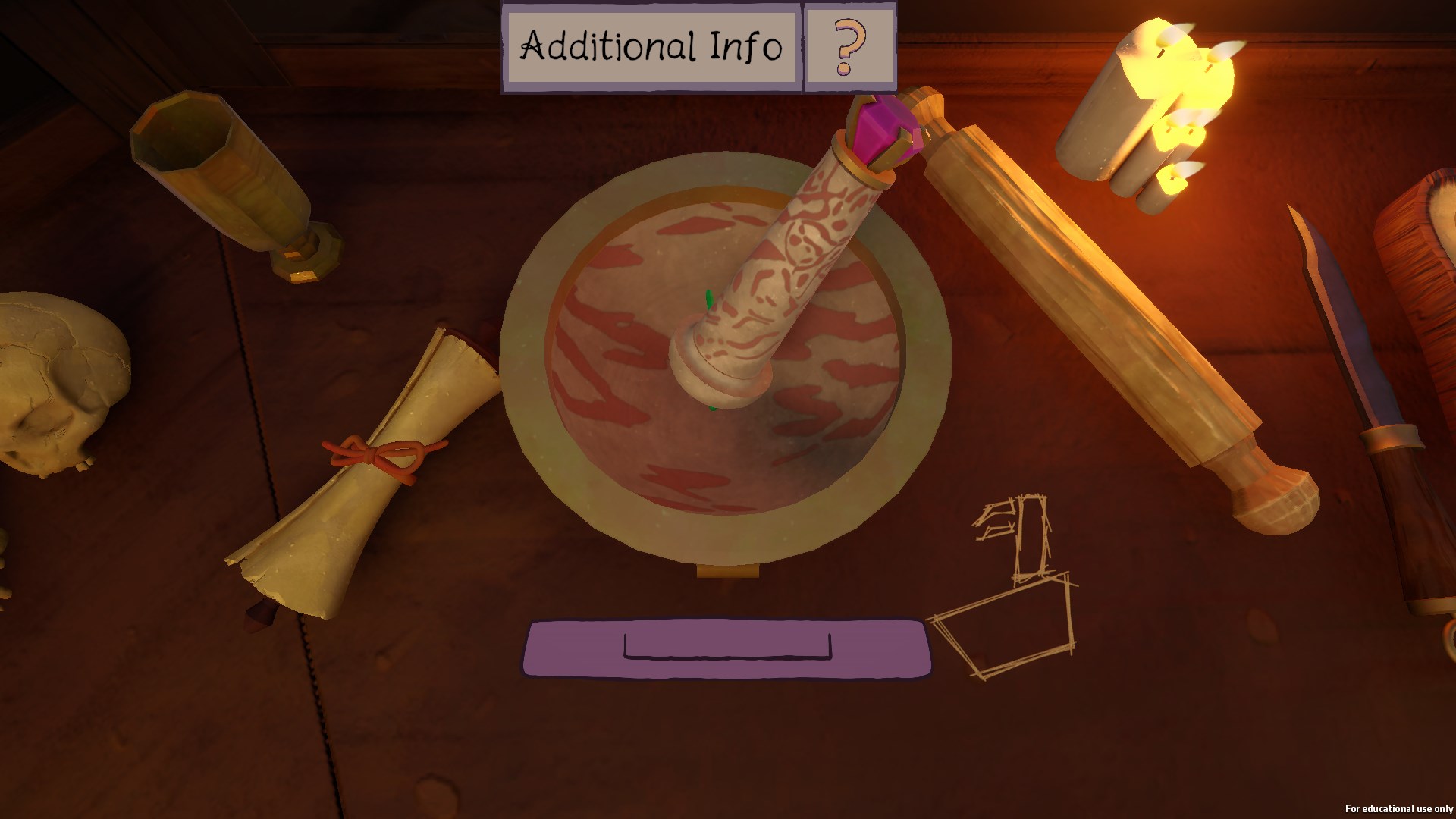
In-Game Mortar & Pestle
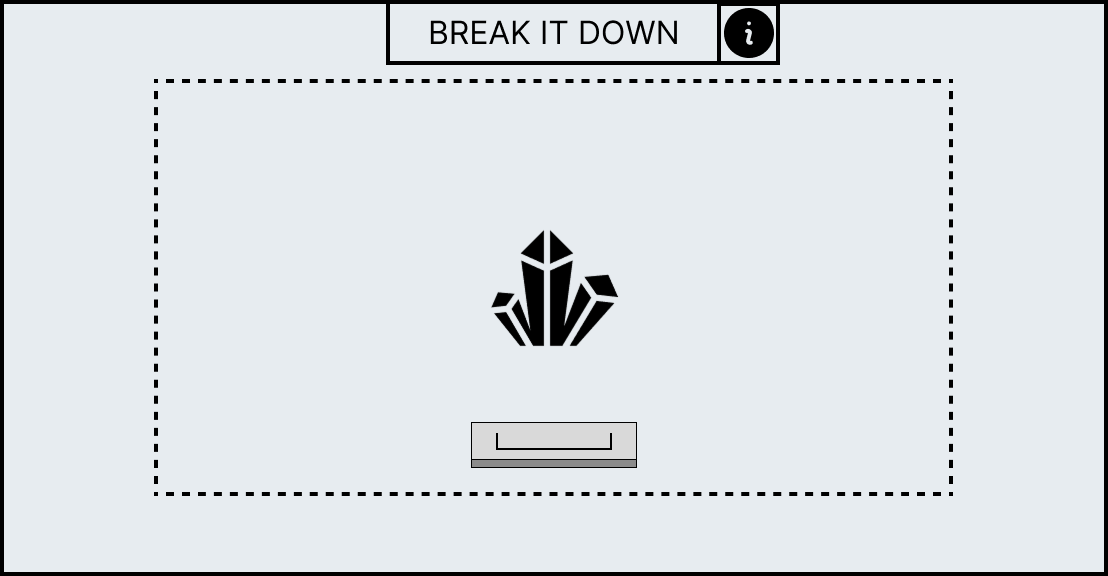
Mortar & Pestle Stage 1 - Spacebar Up Wireframe
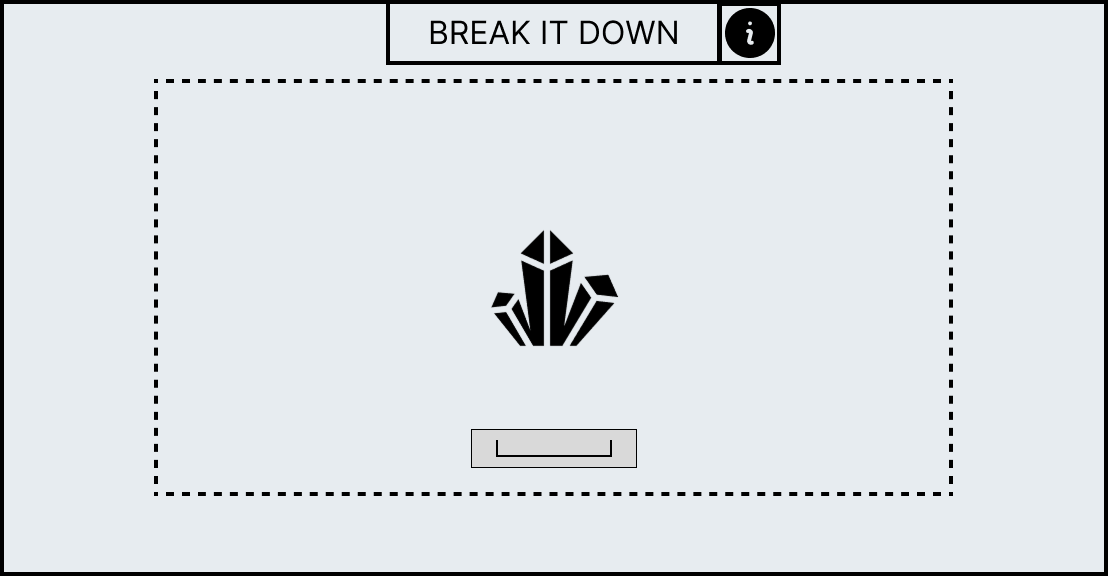
Mortar & Pestle Stage 1 - Spacebar Down Wireframe
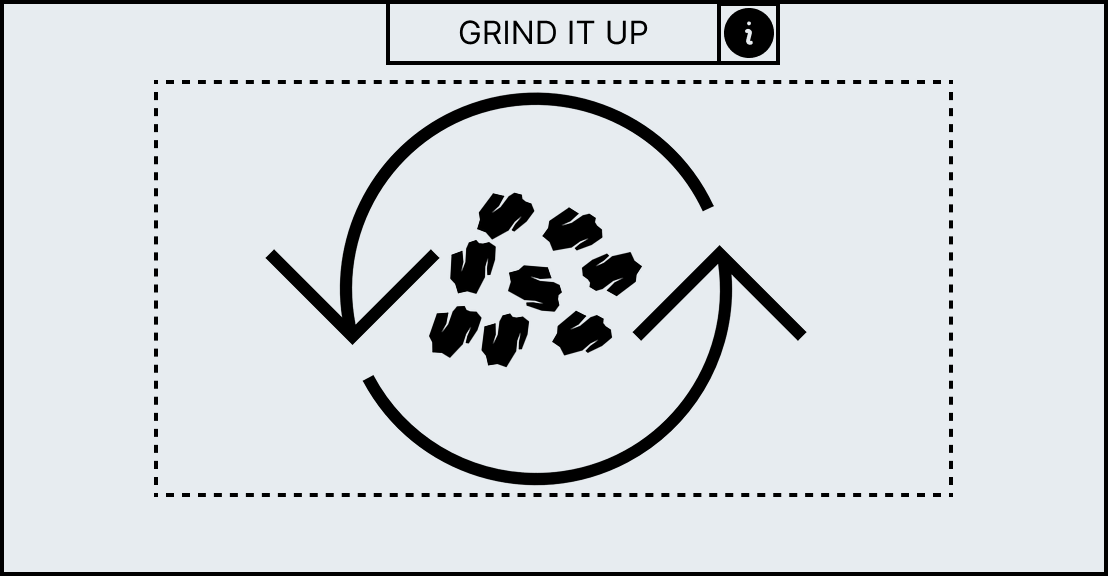
Mortar & Pestle Stage 2 Wireframe
Mortar & Pestle Stage 2 Wireframe
FURNACE
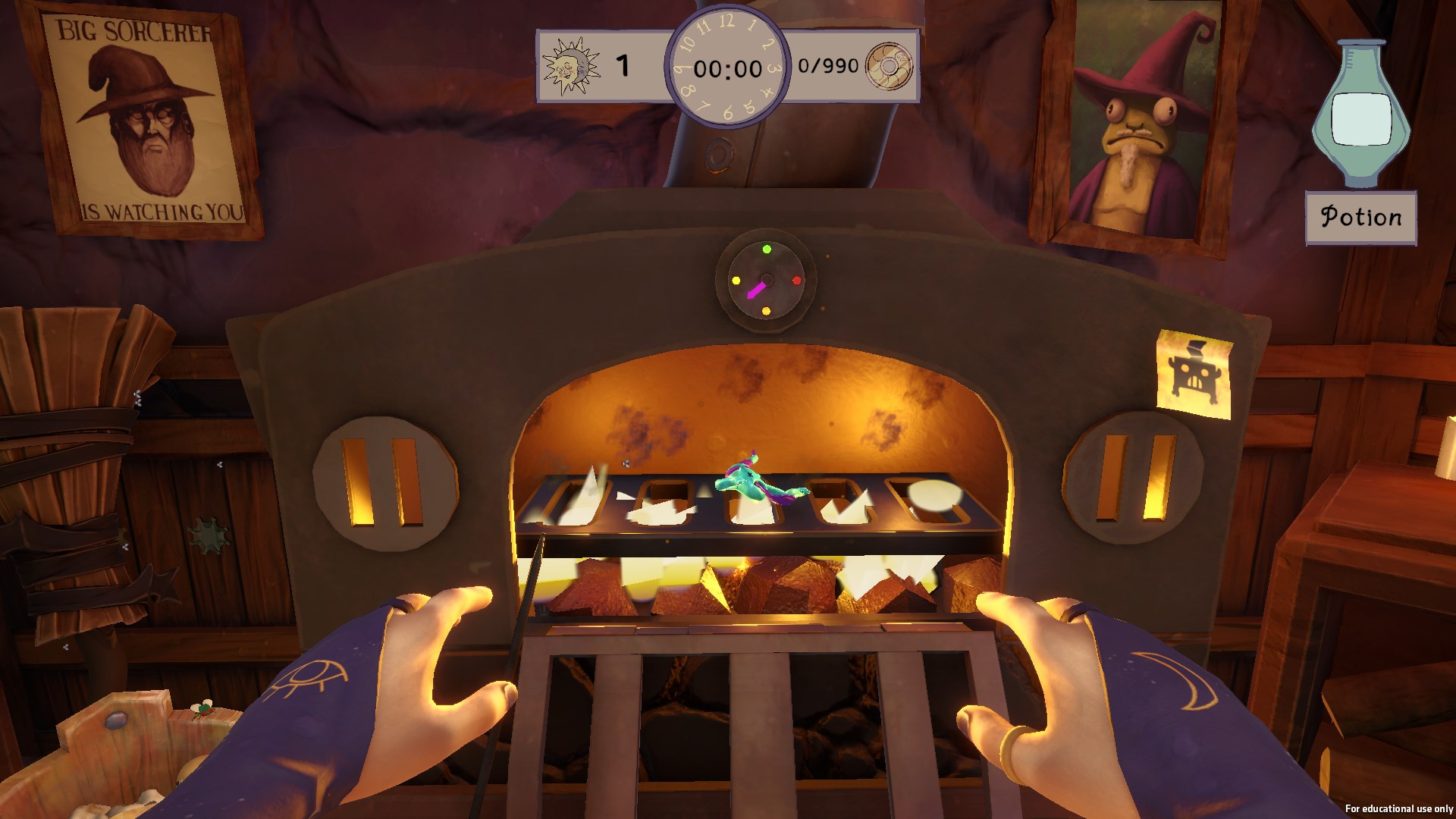
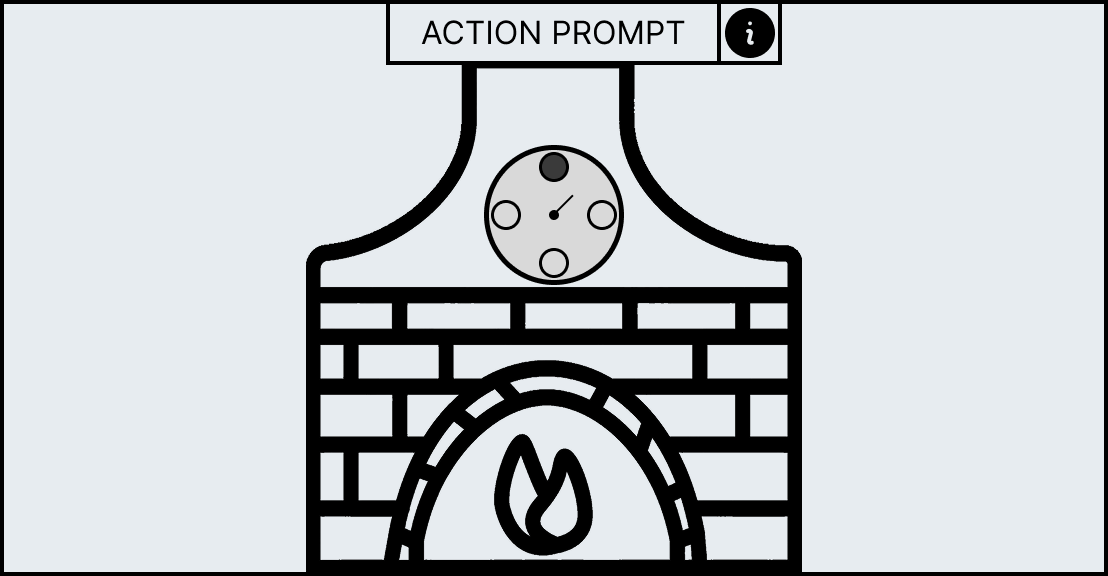
The furnace is a passive minigame in the sense that the player isn’t locked in when its activated. The player will first place an ingredient into the furnace which will start the timer above the opening. The player is free to move around and do other activities when an ingredient is cooking. However, they will need to keep an eye on it because if the ingredient stays in the furnace over the time limit, then the ingredient will burn and become unusable in the potion recipe.
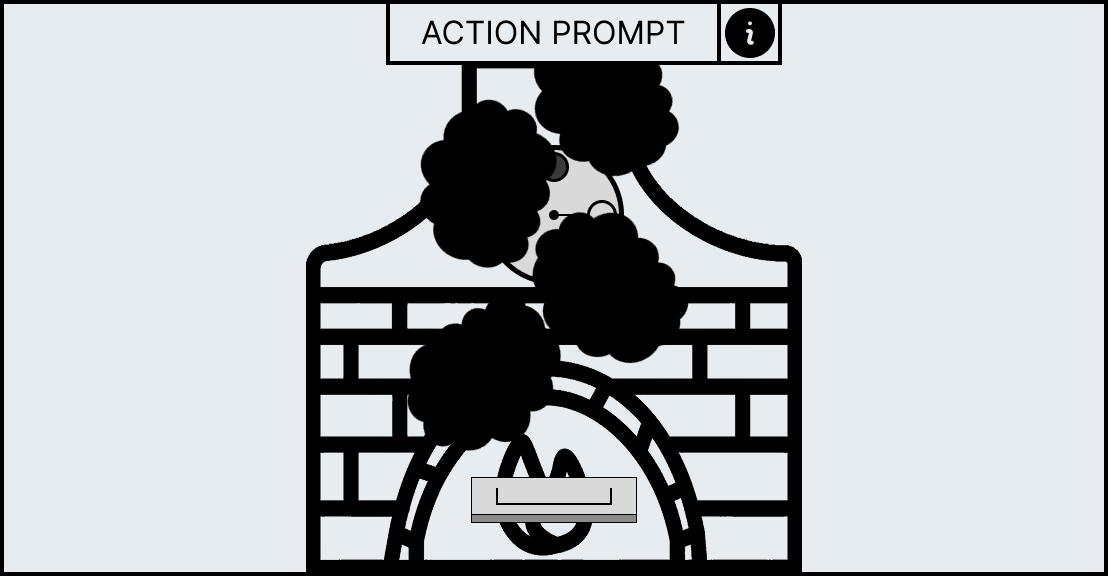
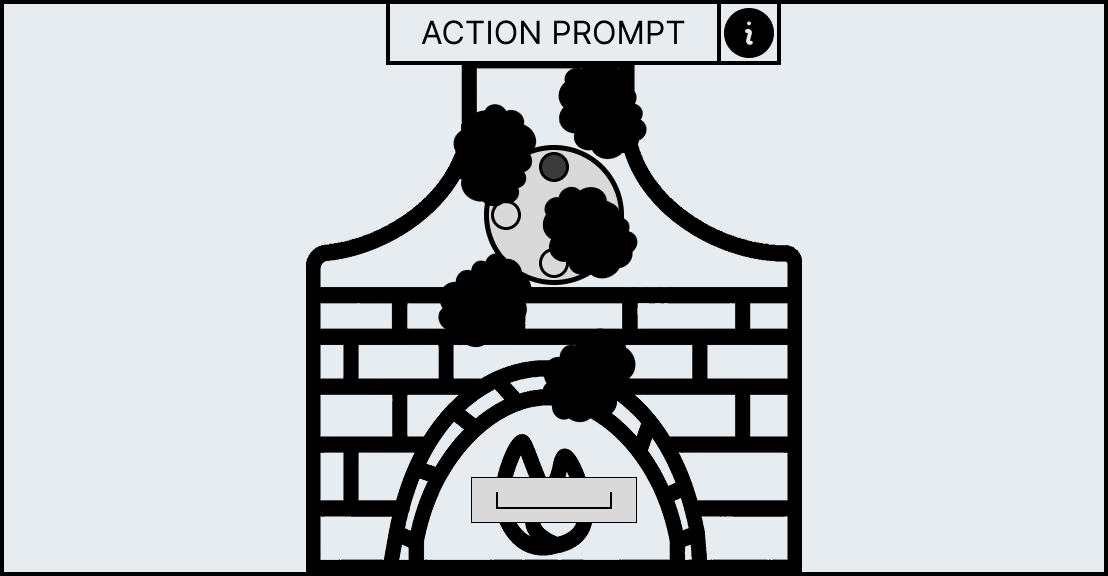
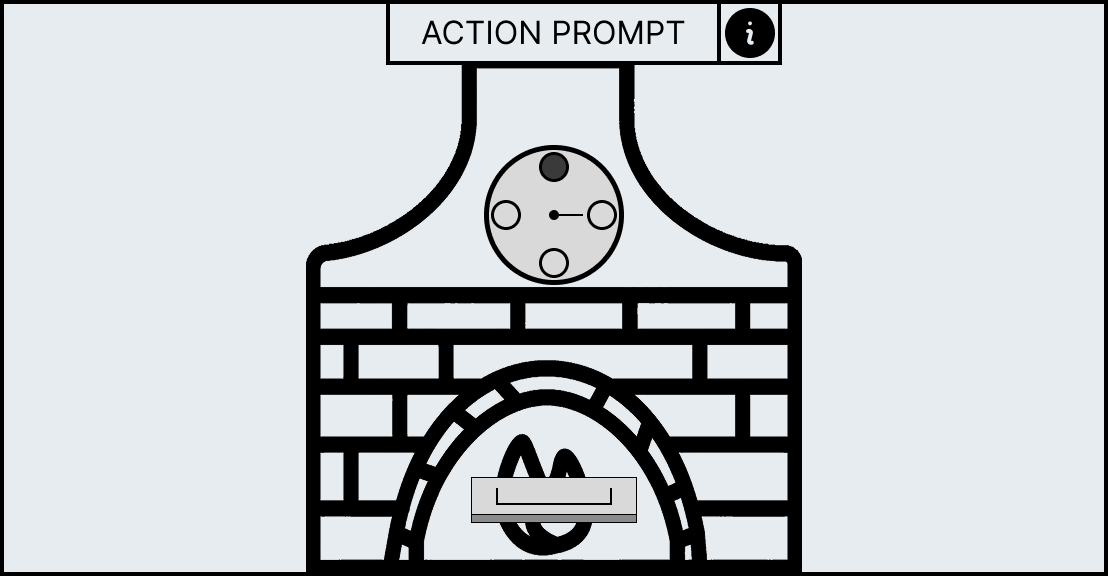
The furnace also has a broken variant where randomly throughout the game the workstation will break leaving it unable to be used until it is fixed by the player. When the furnace is broken black plumes of smoke will come off of its opening, for the player to fix this they will have to go into the minigame and mash the space bar to swipe away the smoke. The more the player does this the lighter the smoke will get until it was all gone which concludes the minigame allowing for the player to use the workstation again.
In-Game Furnace
Furnace Wireframe
Broken Furnace Minigame Storyboard 1
Broken Furnace Minigame Storyboard 2
Broken Furnace Minigame Storyboard 3
INCUBATOR
The incubator minigame gives the player several levers, the player will have to match the direction of these levers with the lights that are coloured green. Once the player has matched all the levers with the corresponding lights then the minigame is complete.
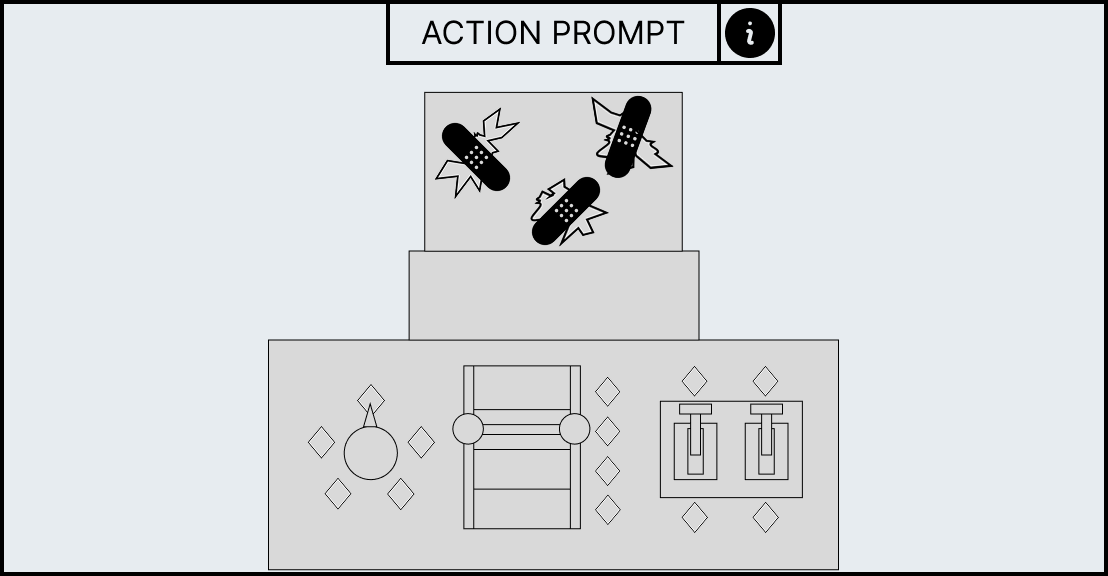
This minigame has a broken variant which happens randomly throughout gameplay and stops the player from using the workstation. To fix the incubator the player will have to enter the minigame and match the broken glass parts that are floating in the air with the broken parts of the incubator’s glass case by dragging the parts with their mouse. Once all parts are in place the incubator is fixed and ready to be used again.
In-Game Incubator
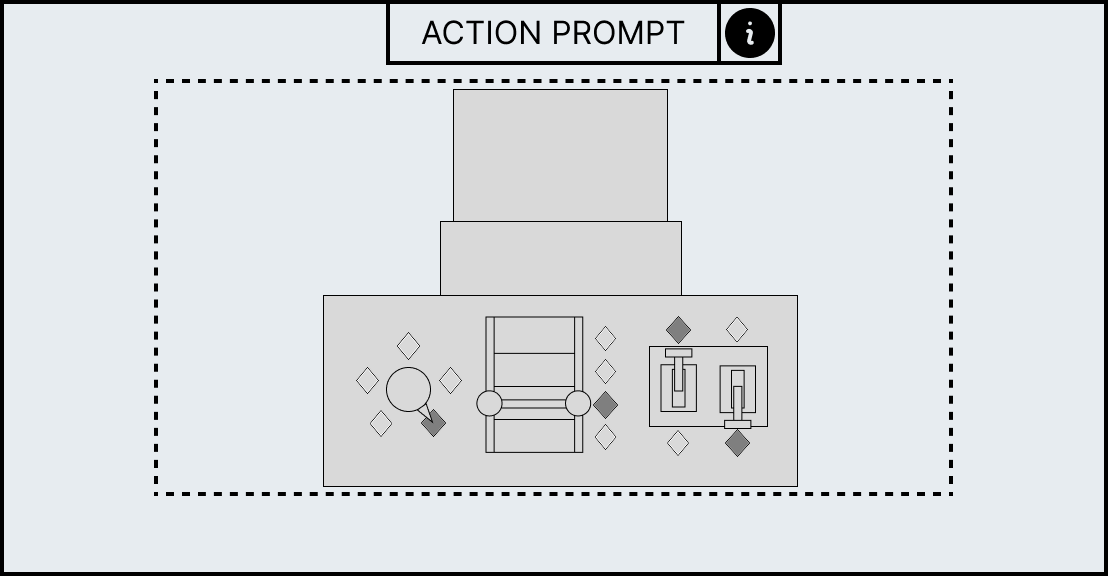
Incubator Minigame Wireframe
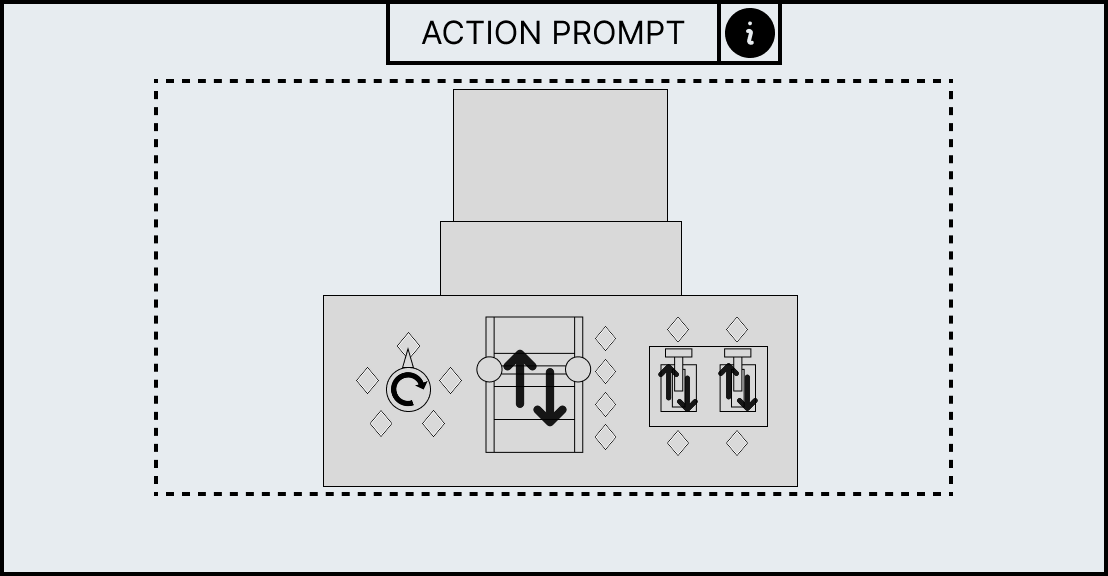
Incubator Inputs Minigame Wireframe
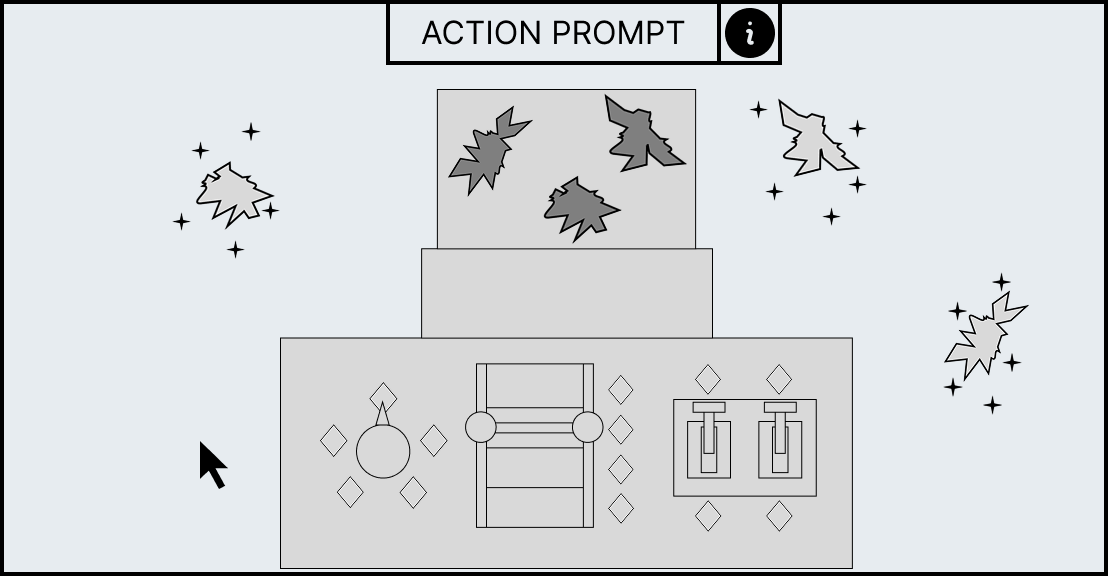
Broken Incubator Minigame Storyboard 1
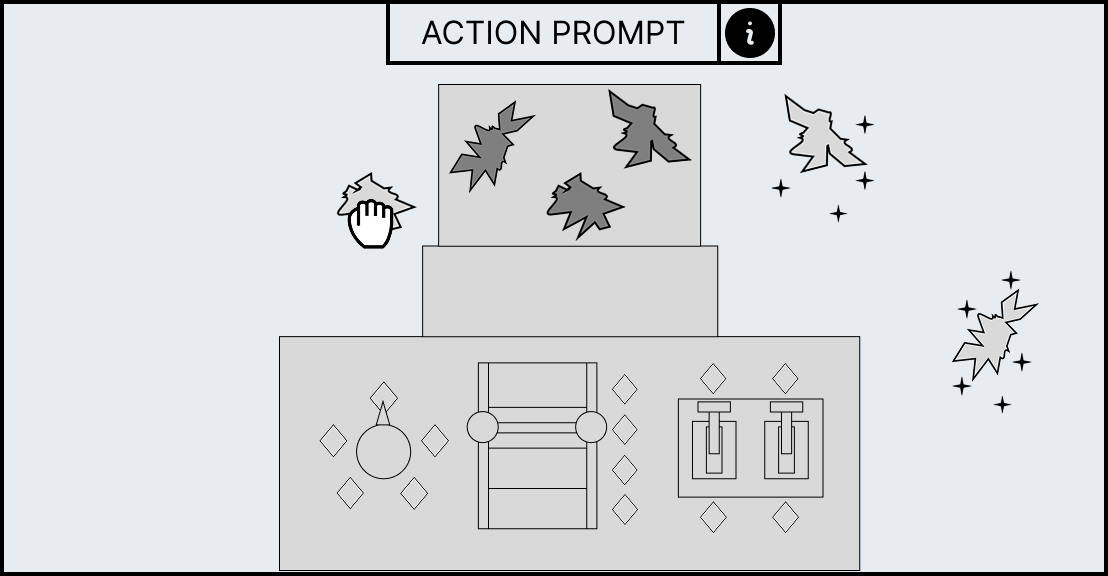
Broken Incubator Minigame Storyboard 2
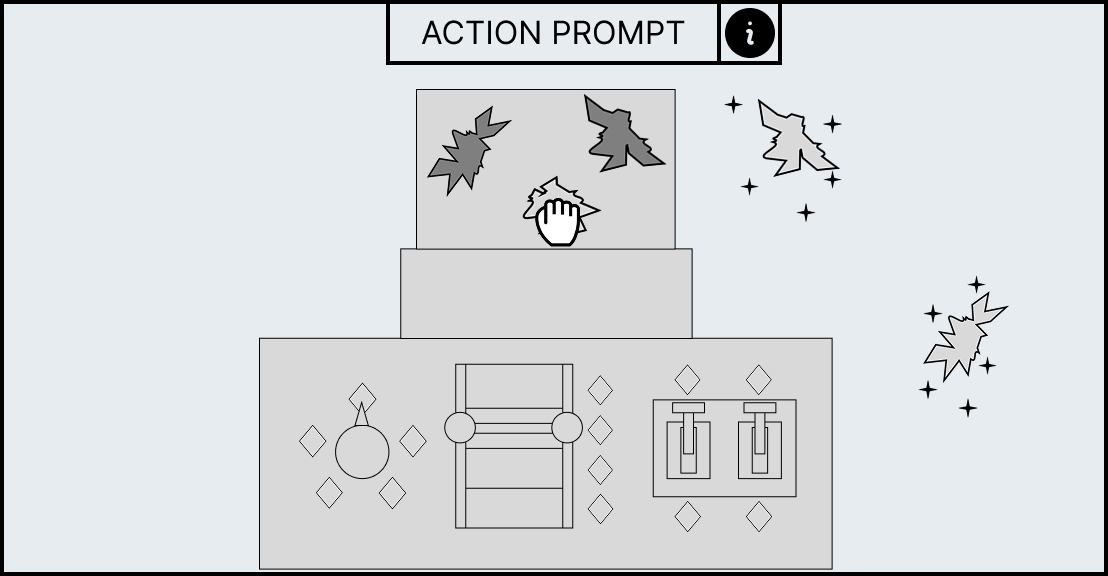
Broken Incubator Minigame Storyboard 3
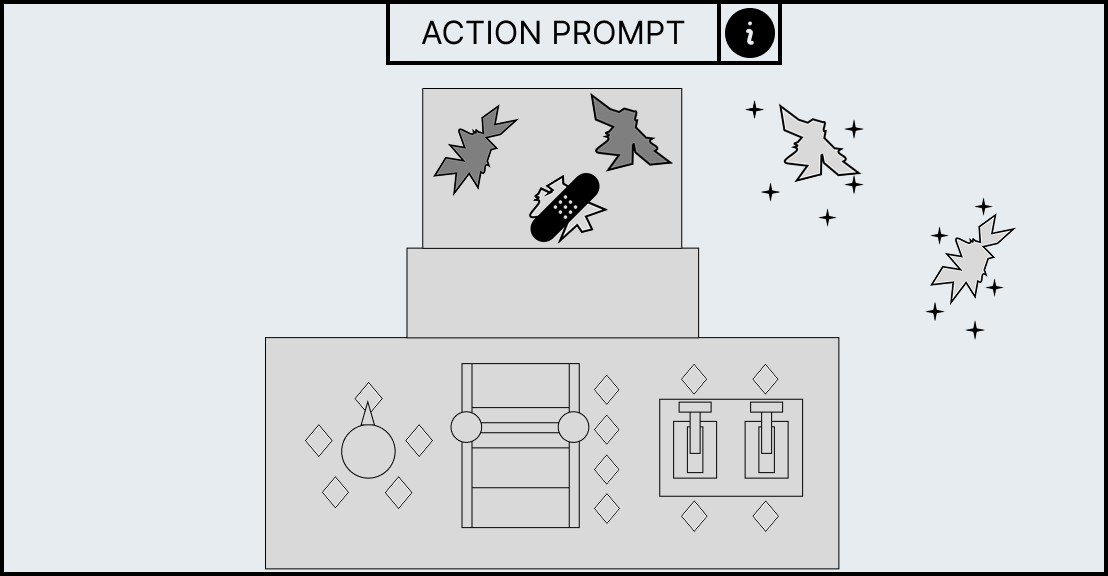
Broken Incubator Minigame Storyboard 4
Broken Minigame Storyboard 5
ENCHANTER
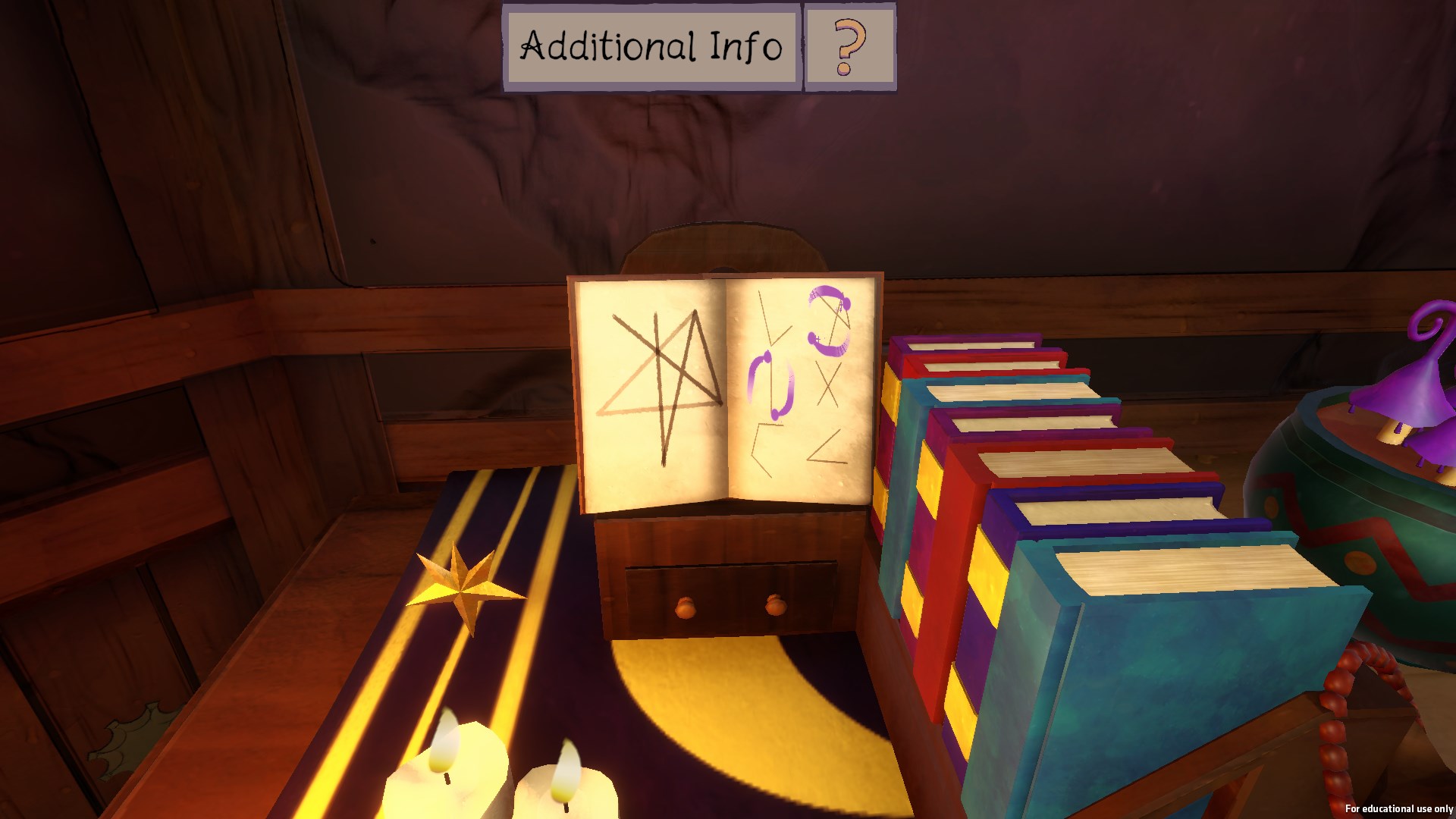
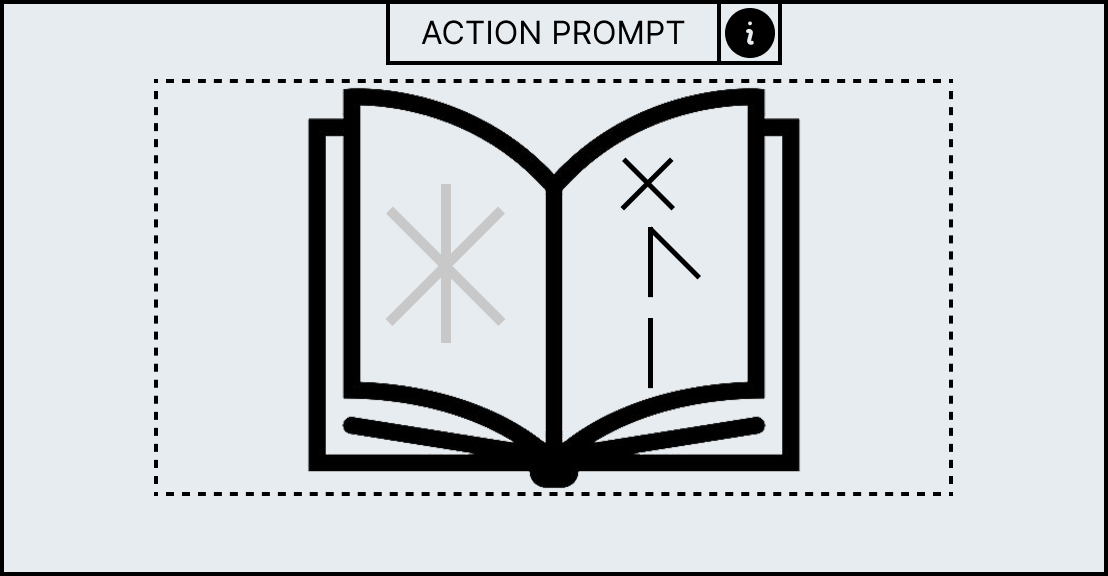
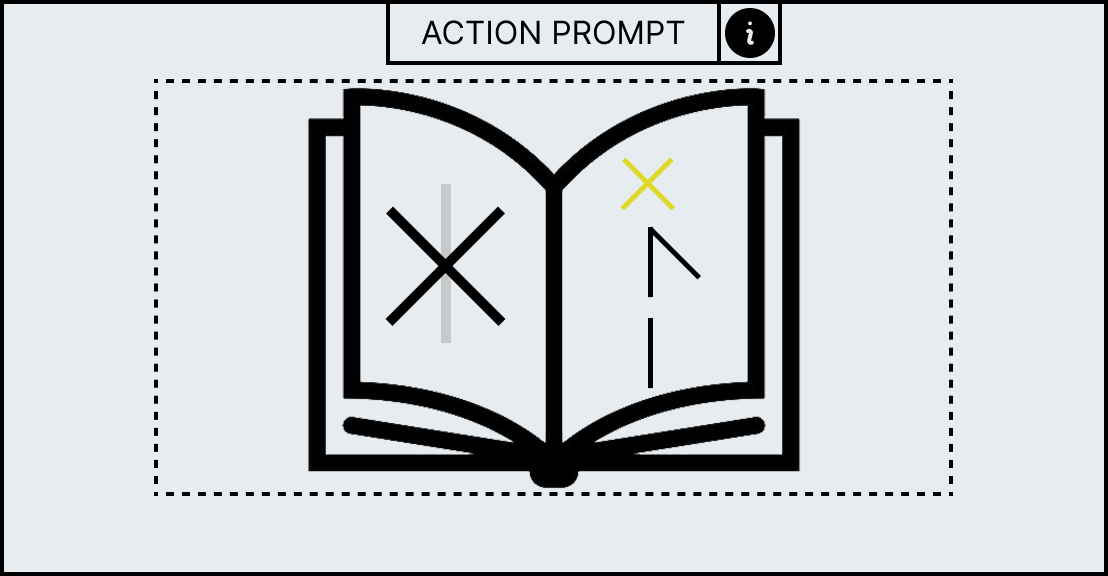
The enchanter minigame is an open book with the left page having a symbol and the right page having a selection of runes. Whenever the player uses the enchanter one of several symbols will appear and the player must use the runes on the right page to recreate the symbol. When the symbol is assembled correctly then the minigame is completed.
The enchanter can also be broken similar to the last two minigames, when this happens the workstation will be covered in dust which are 2d textures and the player’s cursor will be replaced with a feather duster. The player must use their cursor to erase enough of the dust to clear off the workstation, the player only has to clear a majority of the dust before it is all removed. After the workstation is cleaned then it returns back to normal.
In-Game Enchanter
Enchanter Wireframe
Enchanter Rune Selected Wireframe
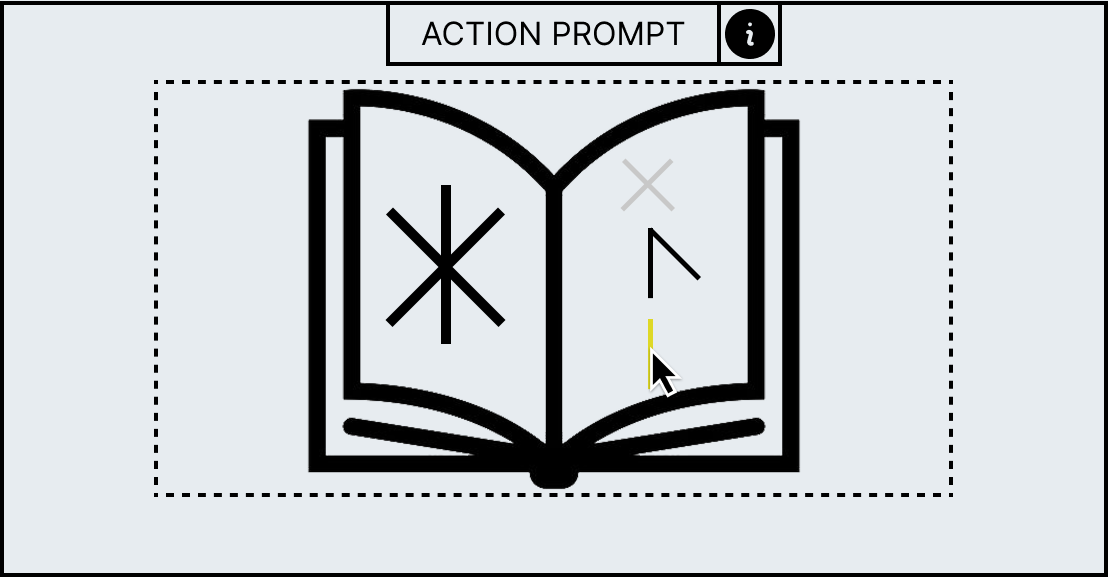
Enchanter Symbol Completed Wireframe
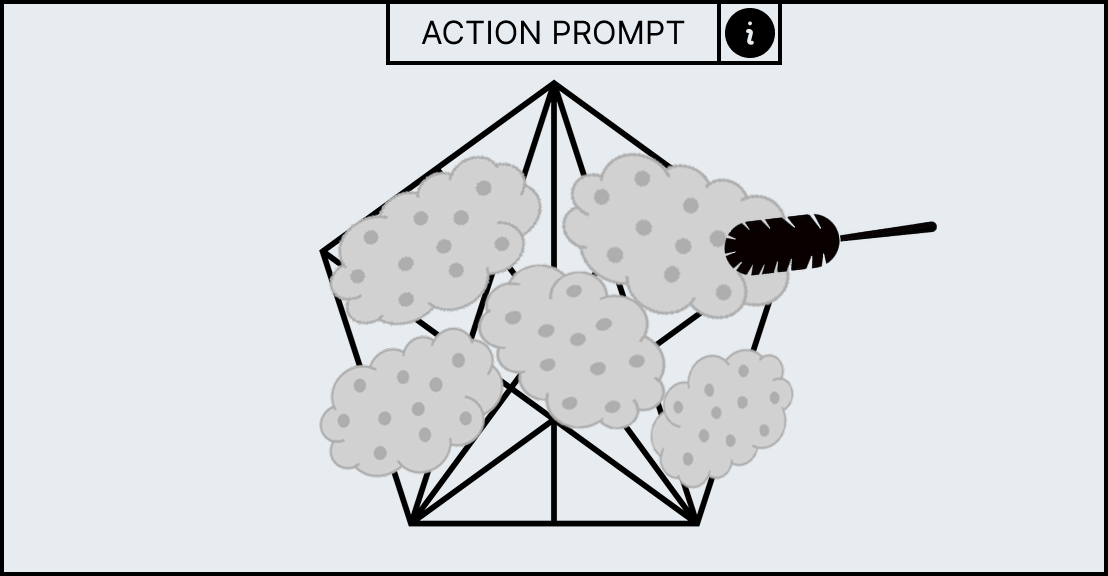
Broken Enchanter Minigame Storyboard 1
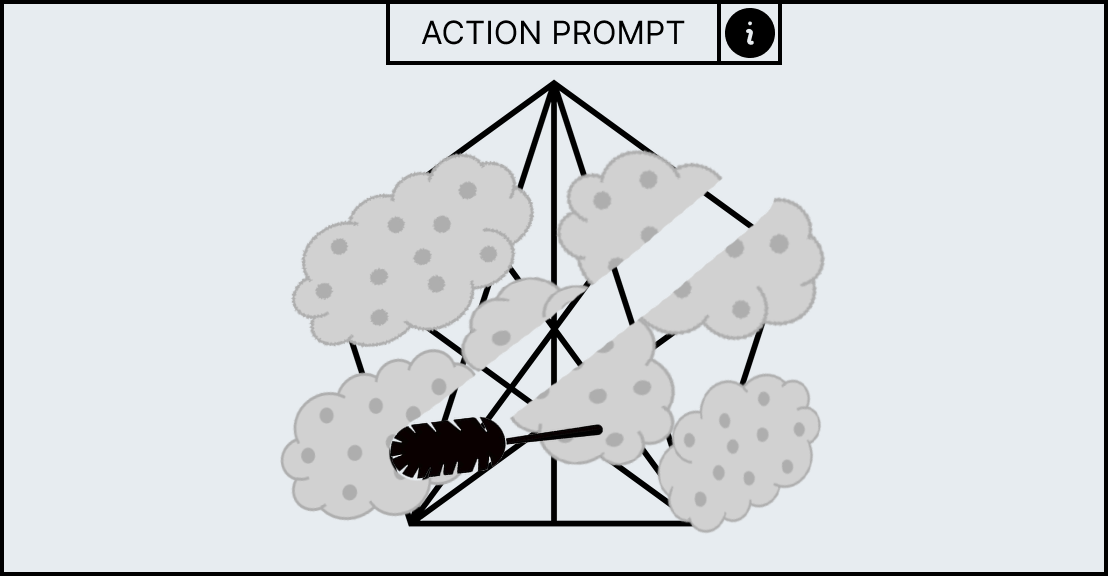
Broken Enchanter Minigame Storyboard 2
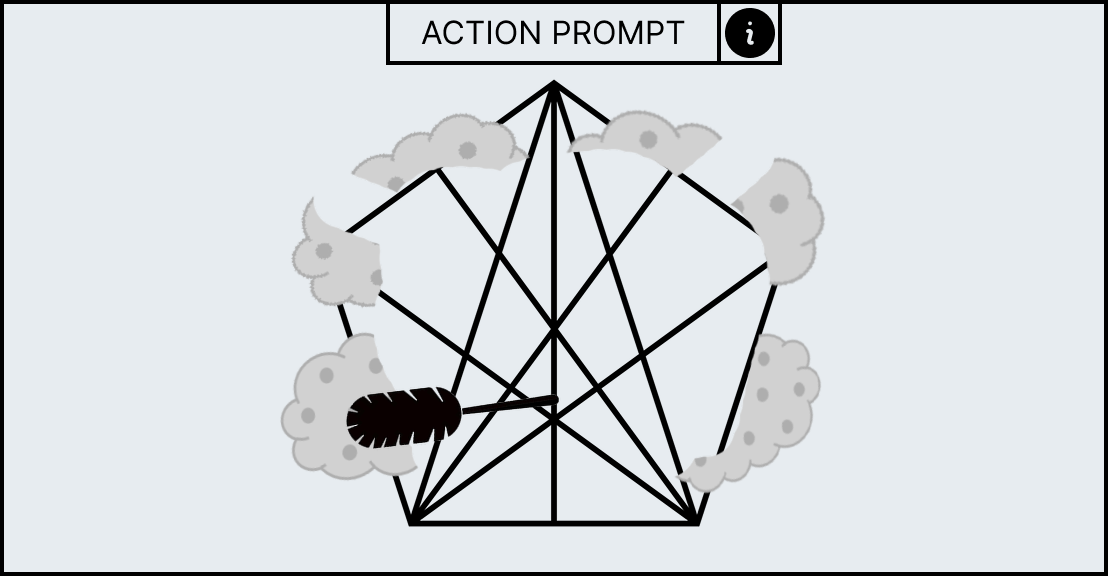
Broken Enchanter Minigame Storyboard 3
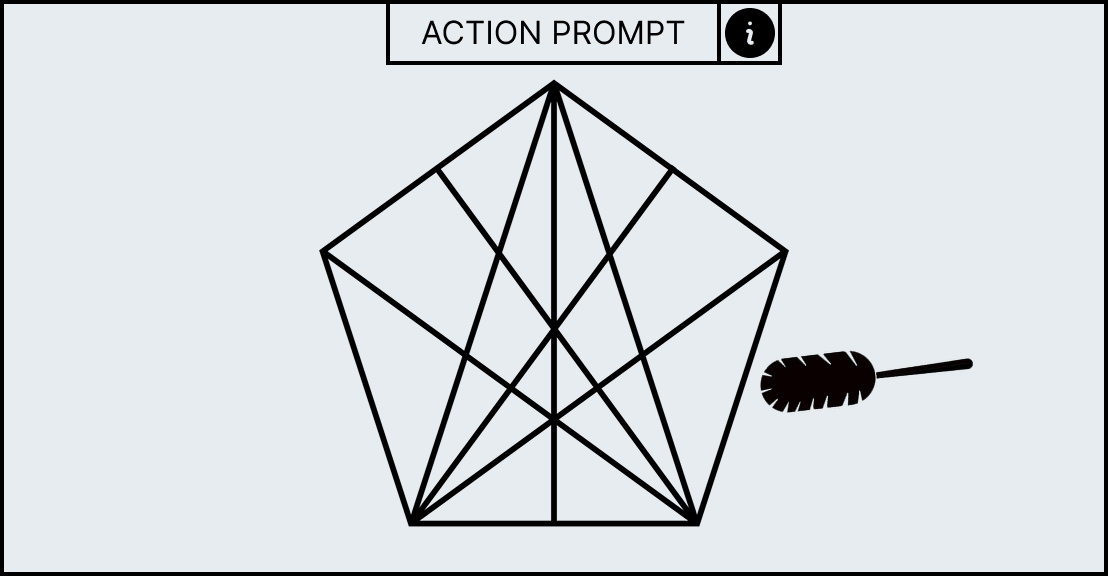
Broken Enchanter Minigame Storyboard 4
DAY TRANSITION
Gameplay is broken up into days with each new day coming with a higher quote that the player has to reach. The day transition is triggered when the player closes their shop’s shutter door which will play the animation.
The transition went with a cartoonish style taking inspiration from the looney tunes ending. Our transition contains a circle mask which gets smaller until the screen is fully covered, at which point the current day will appear and will increase by 1 day.
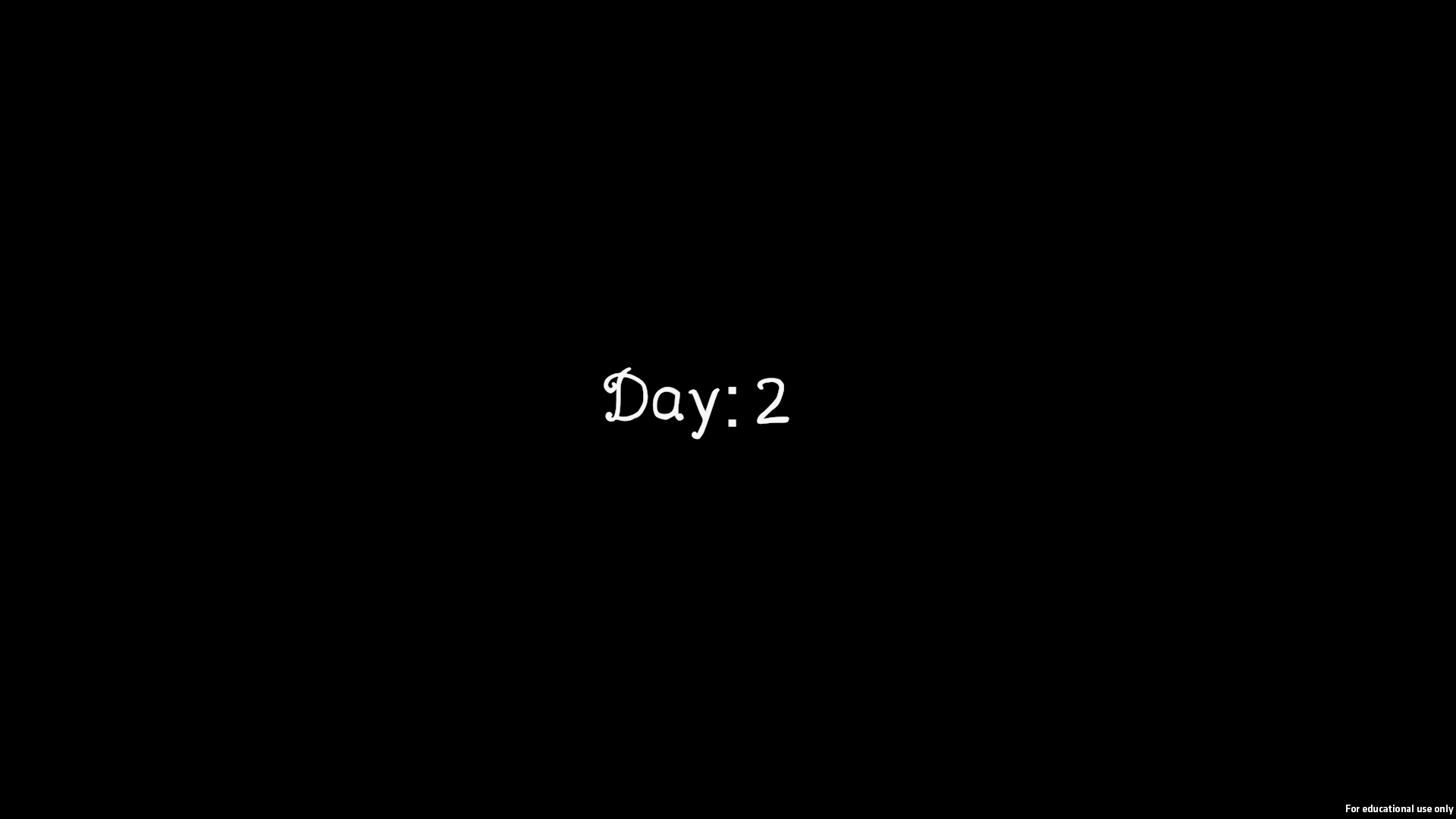
In-Game Day Transition
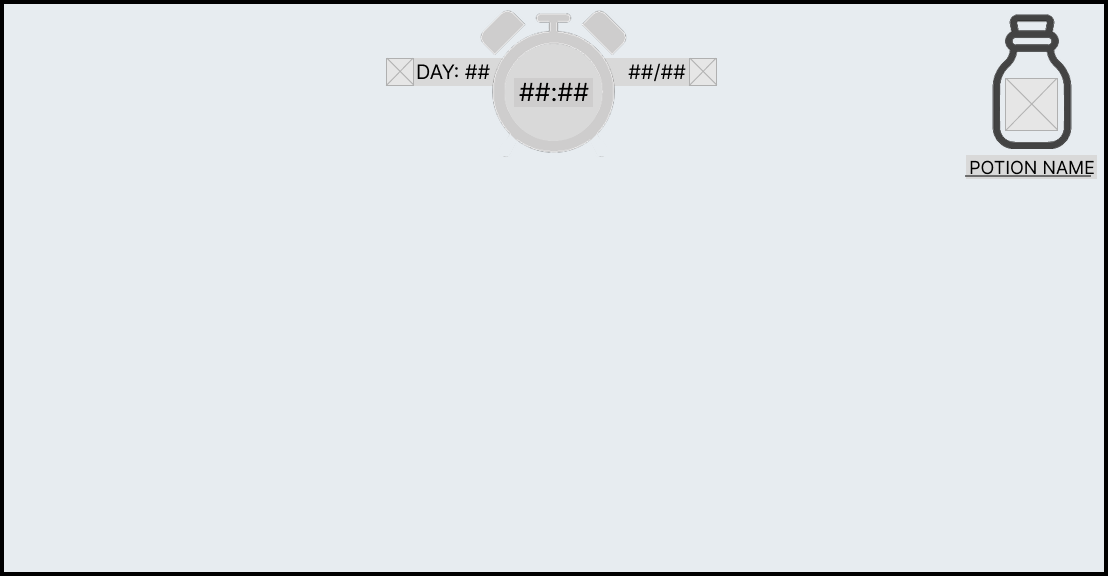
Day Transition Storyboard 1
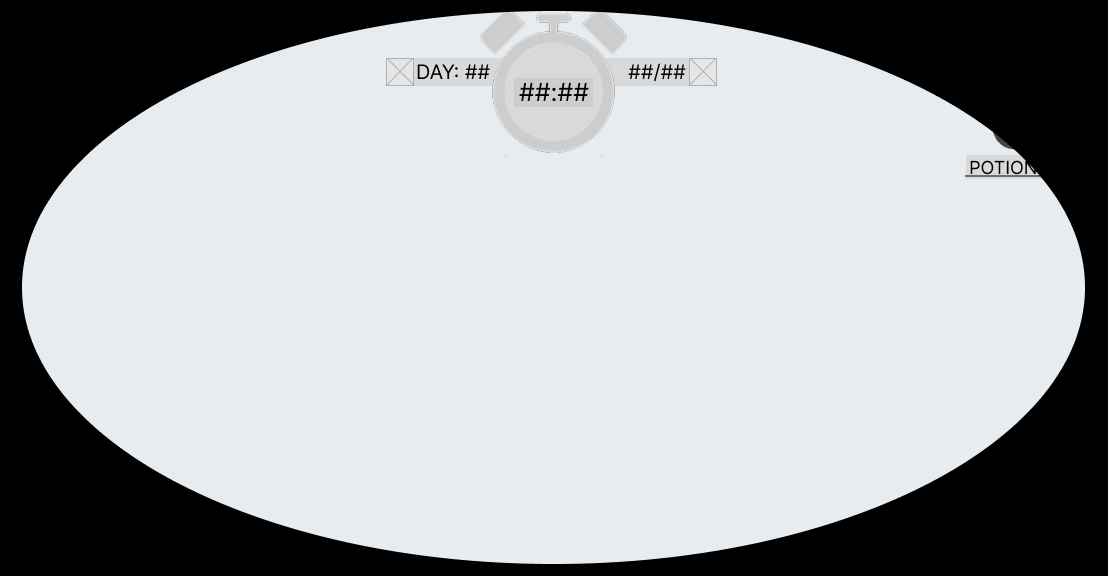
Day Transition Storyboard 2

Day Transition Storyboard 3

Day Transition Storyboard 4

Day Transition Storyboard 5

Day Transition Storyboard 6
GAME OVER
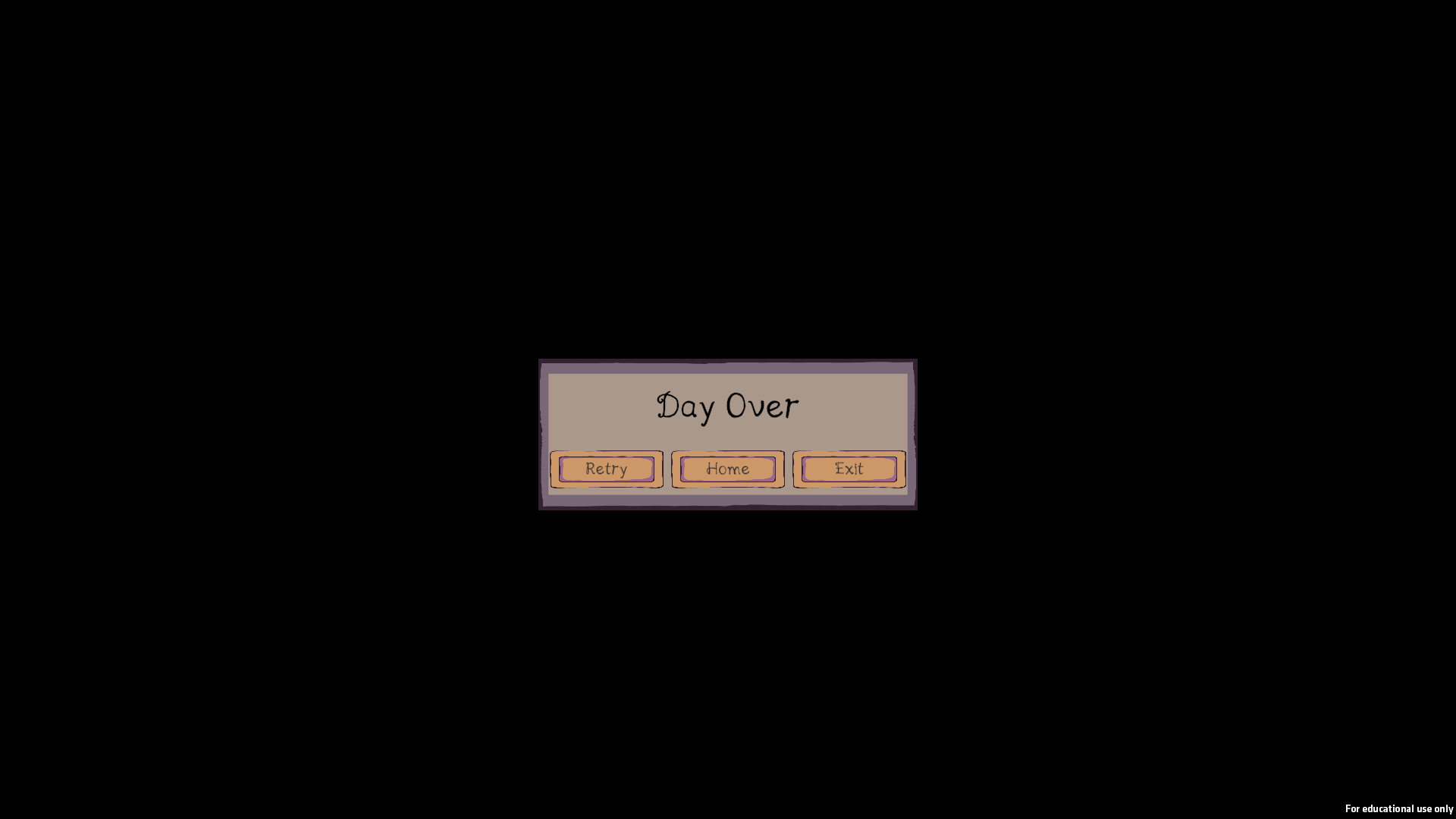
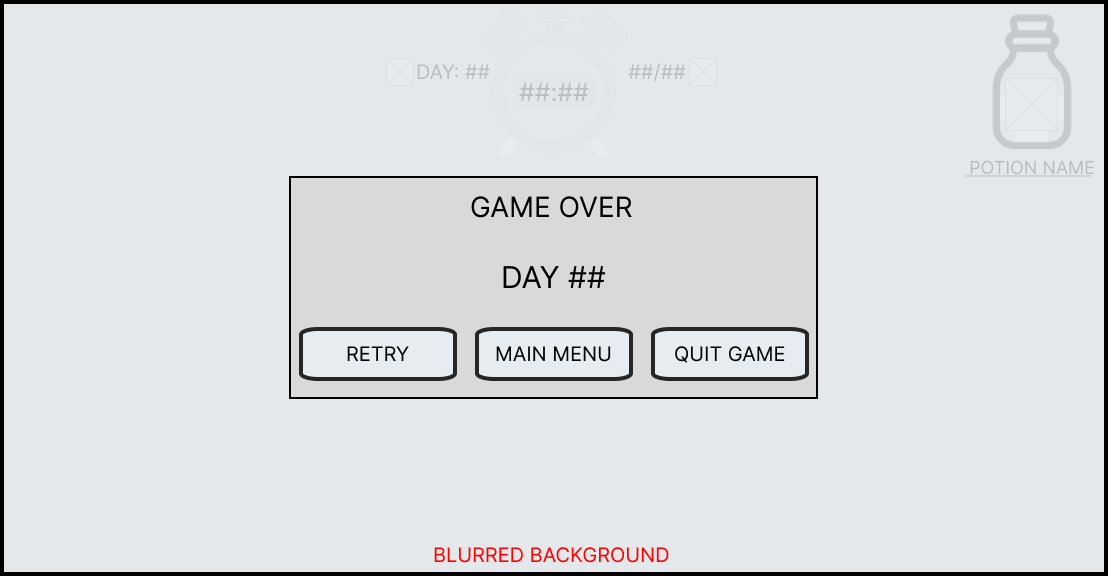
If the player fails to reach their daily quota by the end of the time limit, then they will trigger a game over. When this happens, the screen will blur and the game over panel will appear in the centre of the screen with the current day they are on.
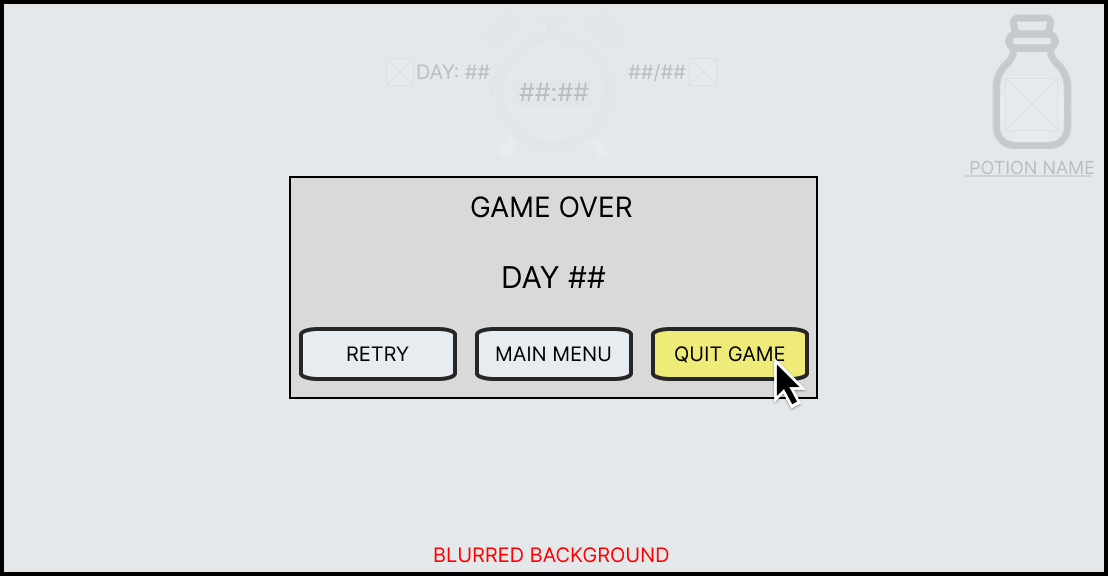
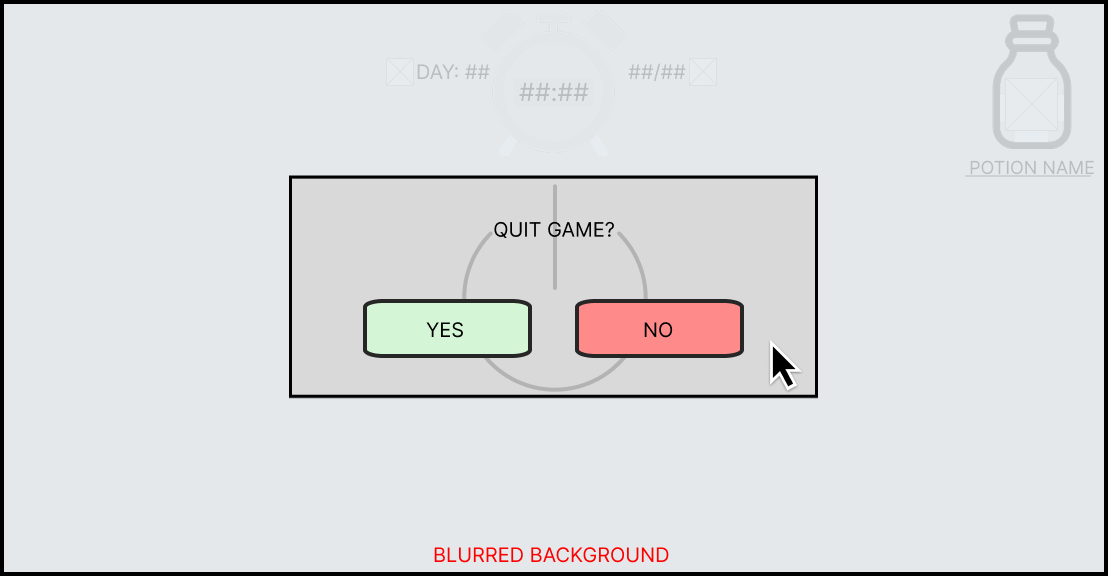
The player is then given three buttons; Retry which will restart the day, Main Menu which will take them to the main menu screen and Quit Game which will close the game. If either of the last two options are pressed a confirmation box will appear asking if they player wishes to continue in case they accidentally pressed it by mistake. This was important because if the player accidentally quit the game then it may take some time for them to reopen it which could lead to them losing their motivation to continue.
In-Game Game Over
Game Over Wireframe
Game Over Hover Wireframe
Game Over Confirmation Box Wireframe
MAIN MENU
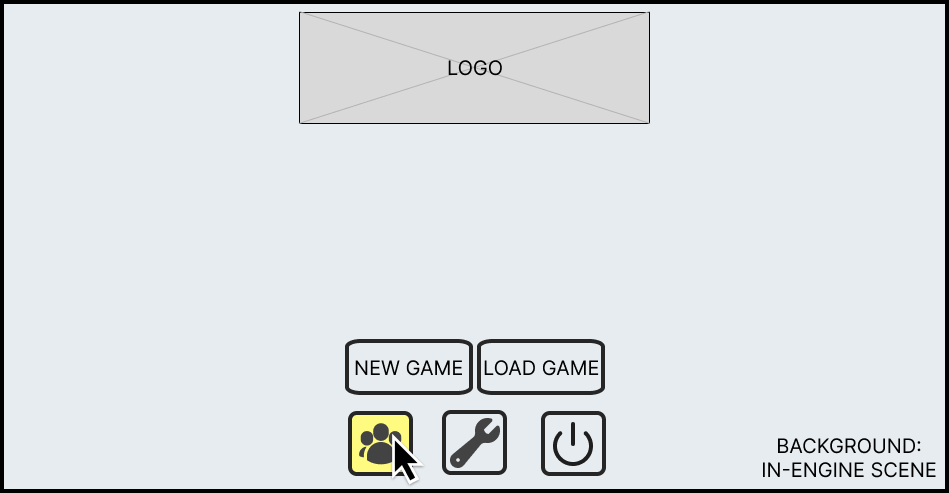
The main menu consists of a logo the is centred to the top of the screen with the player given five buttons that are grouped to the bottom. The group of five buttons allows the player to start the standard game, play an infinite version, configure their settings, watch the credits and quit the game. The quit button also has a confirmation box which activates when the player presses quit, this stops the player from accidentally closing the game and having to reopen the project.
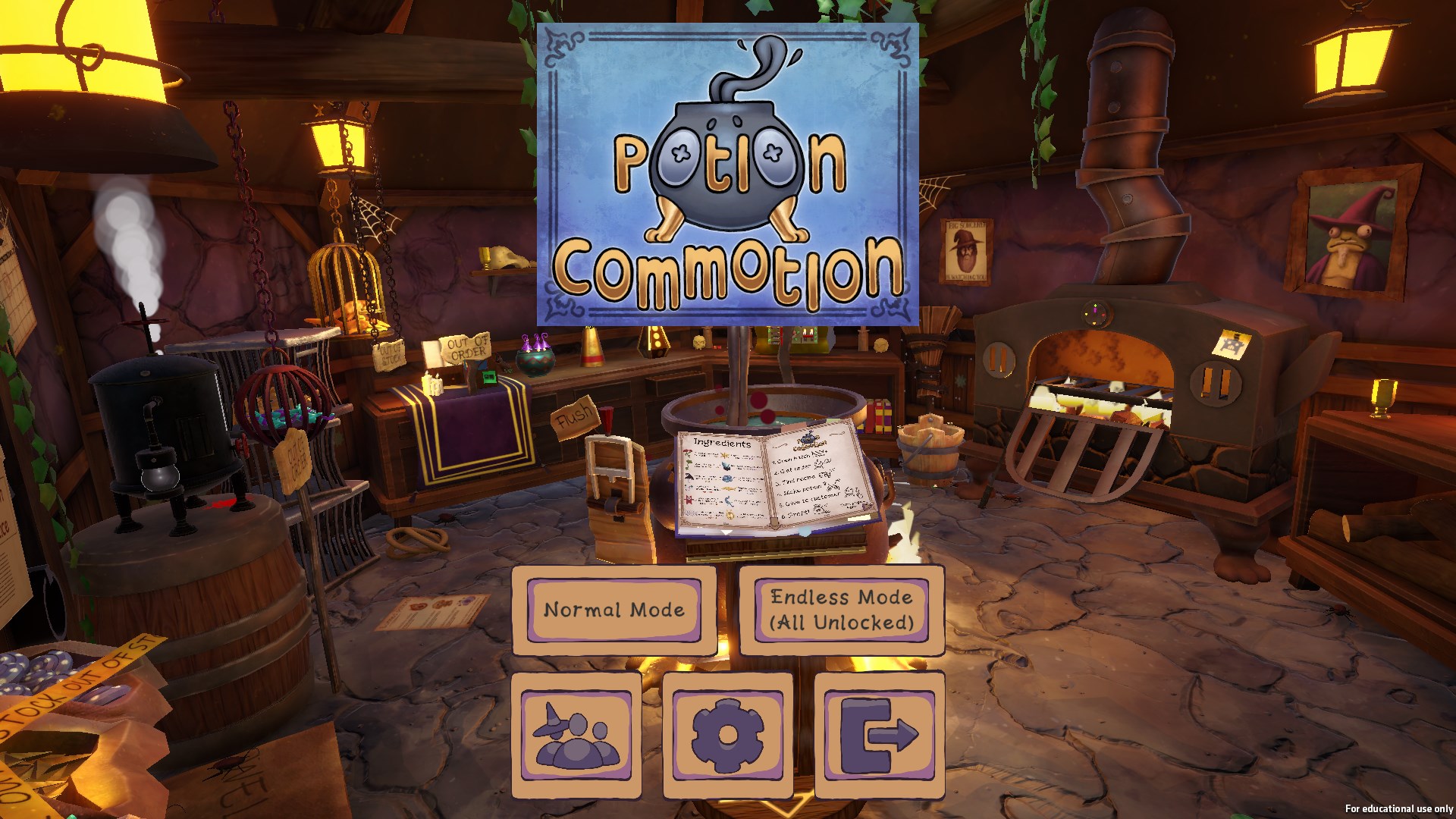
In-Game Main Menu
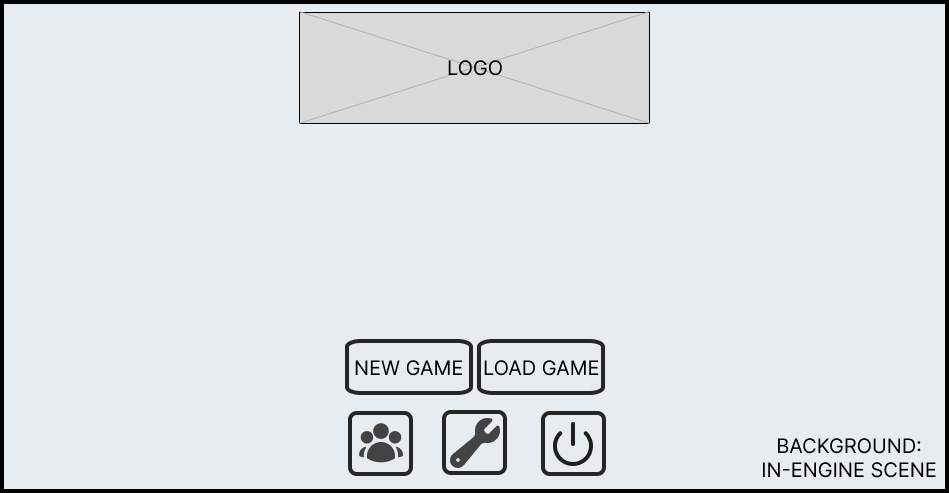
Main Menu Wireframe
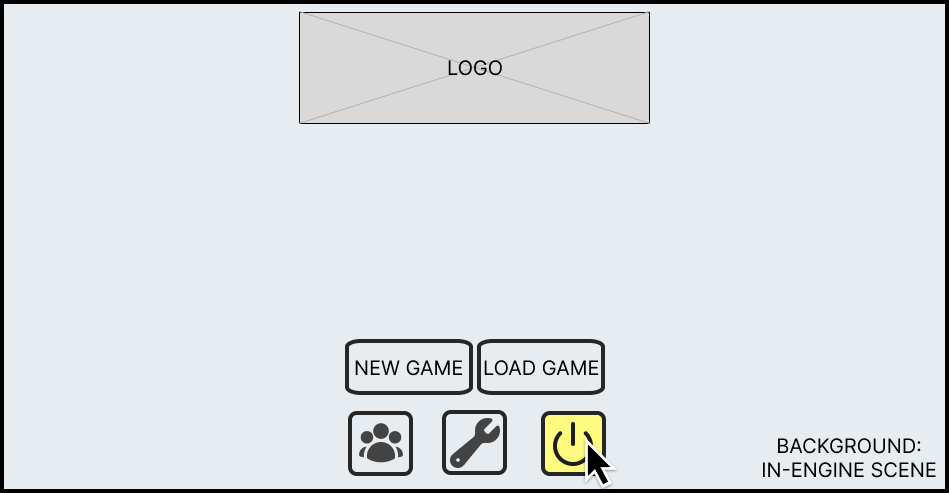
Main Menu Hover Wireframe
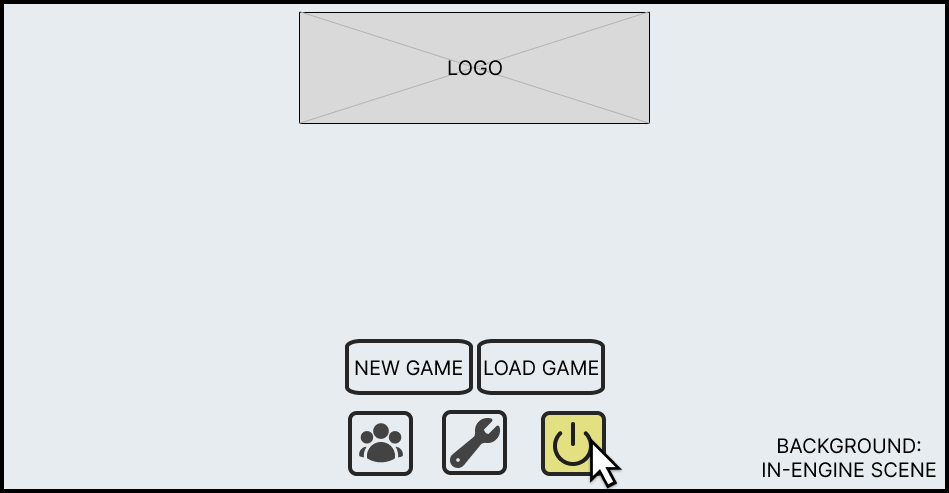
Main Menu Pressed Wireframe
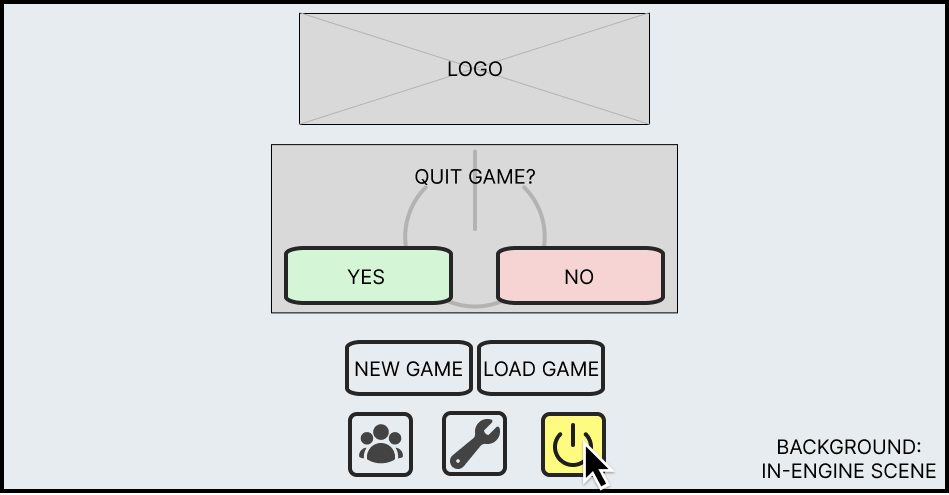
Main Menu Confirmation Box Wireframe
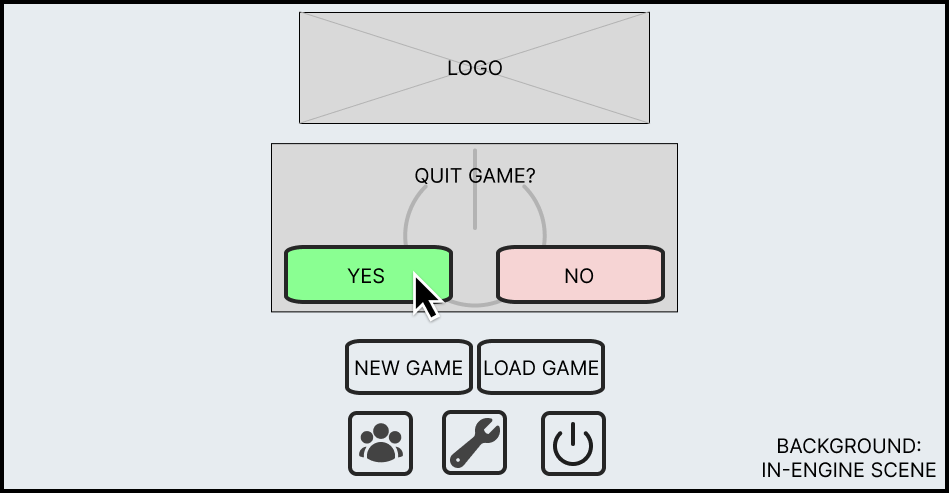
Main Menu Confirmation Box Yes Wireframe
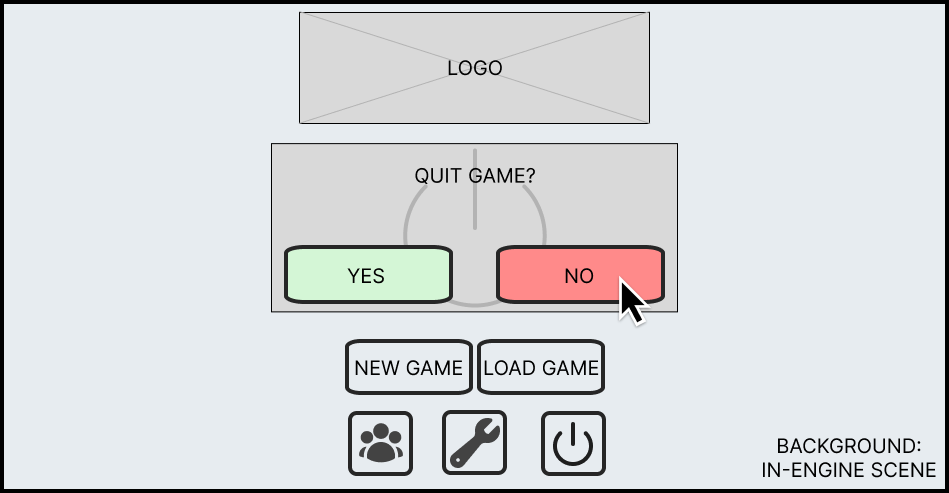
Main Menu Confirmation Box No Wireframe
PAUSE MENU
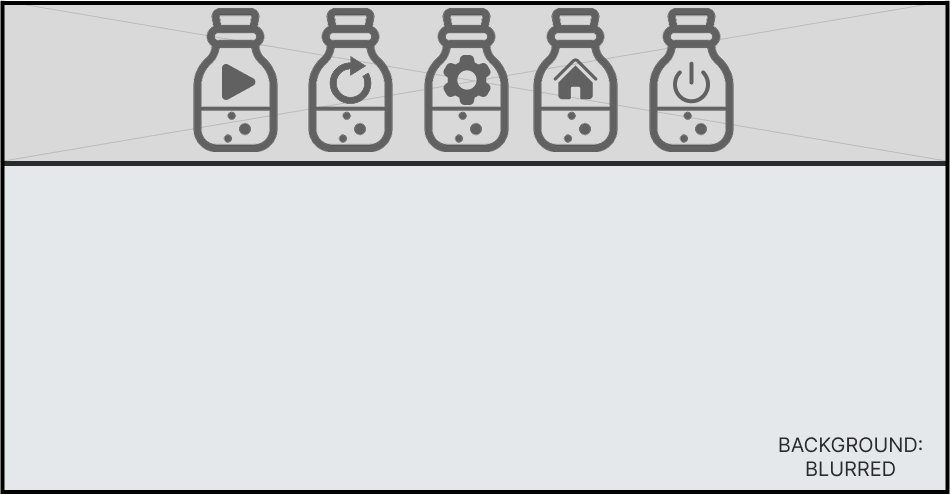
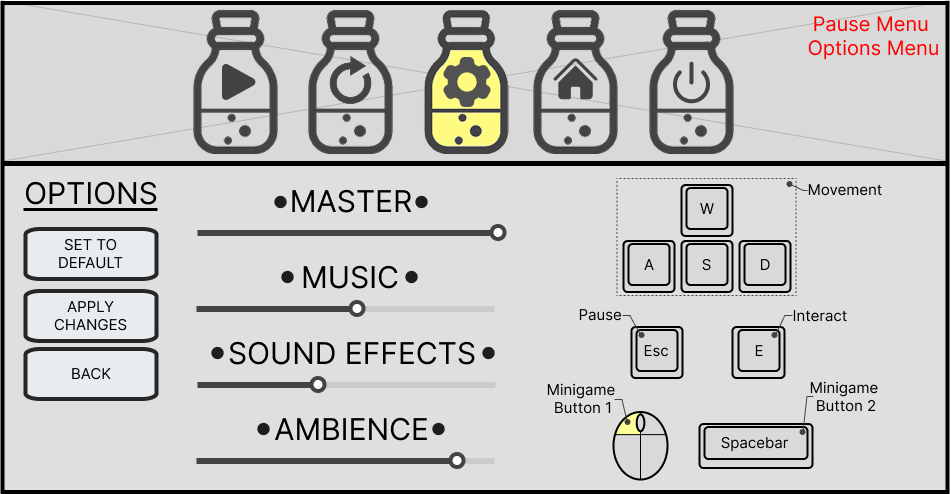
When the player pauses the game, the screen will blur and a header will appear at the top. This will contain multiple buttons such as resume, retry, options, home and exit game with all buttons using icons instead of text.
When the player presses either the home or exit game button then a confirmation box will appear in the centre of the screen asking if they would like to continue with this action. This was in case the player accidentally pressed either of those options, as it would be frustrating to the player if they lost progress in a day due to a miss click.
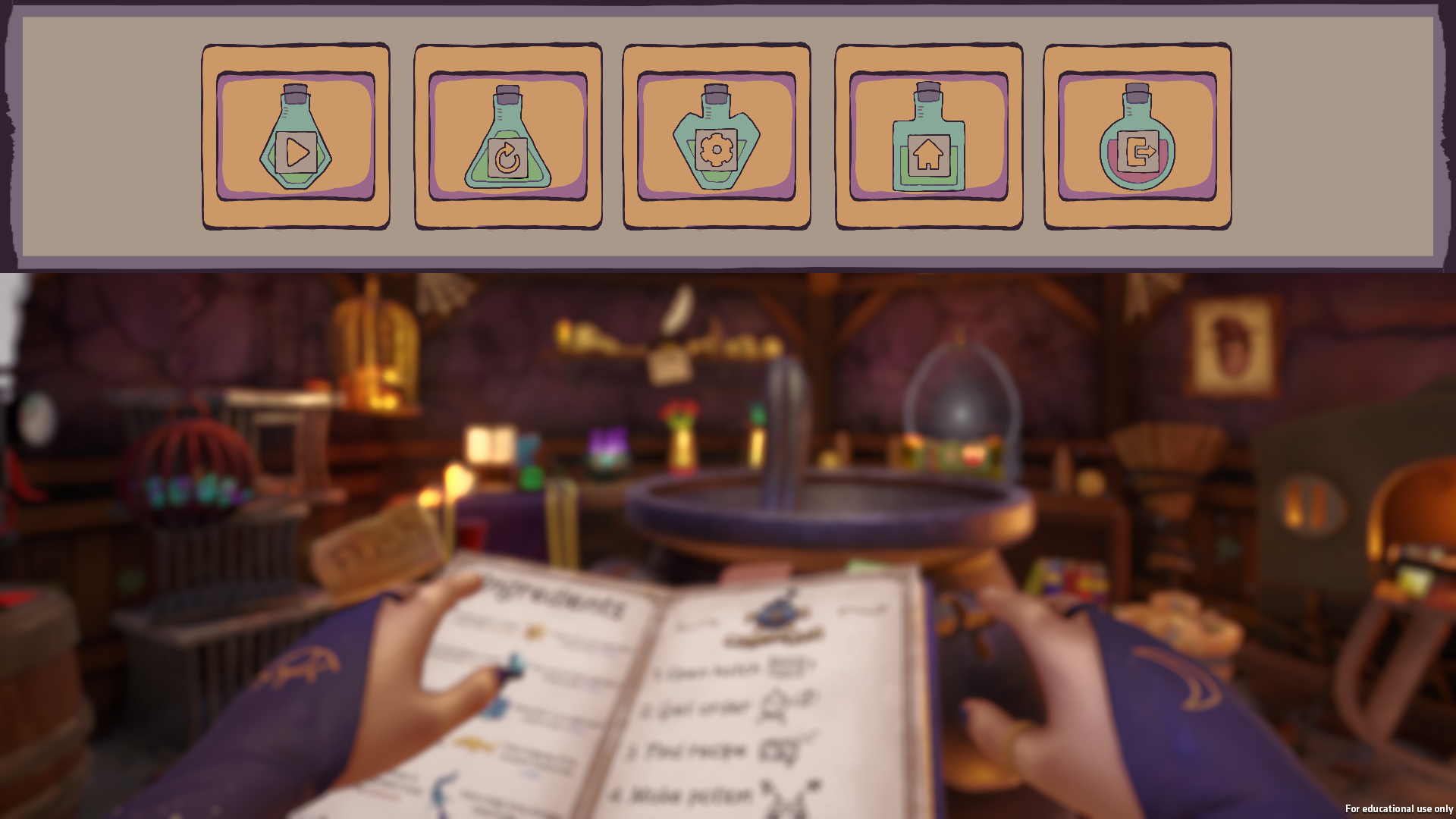
In-Game Pause Menu
Pause Menu Wirefame
OPTIONS MENU
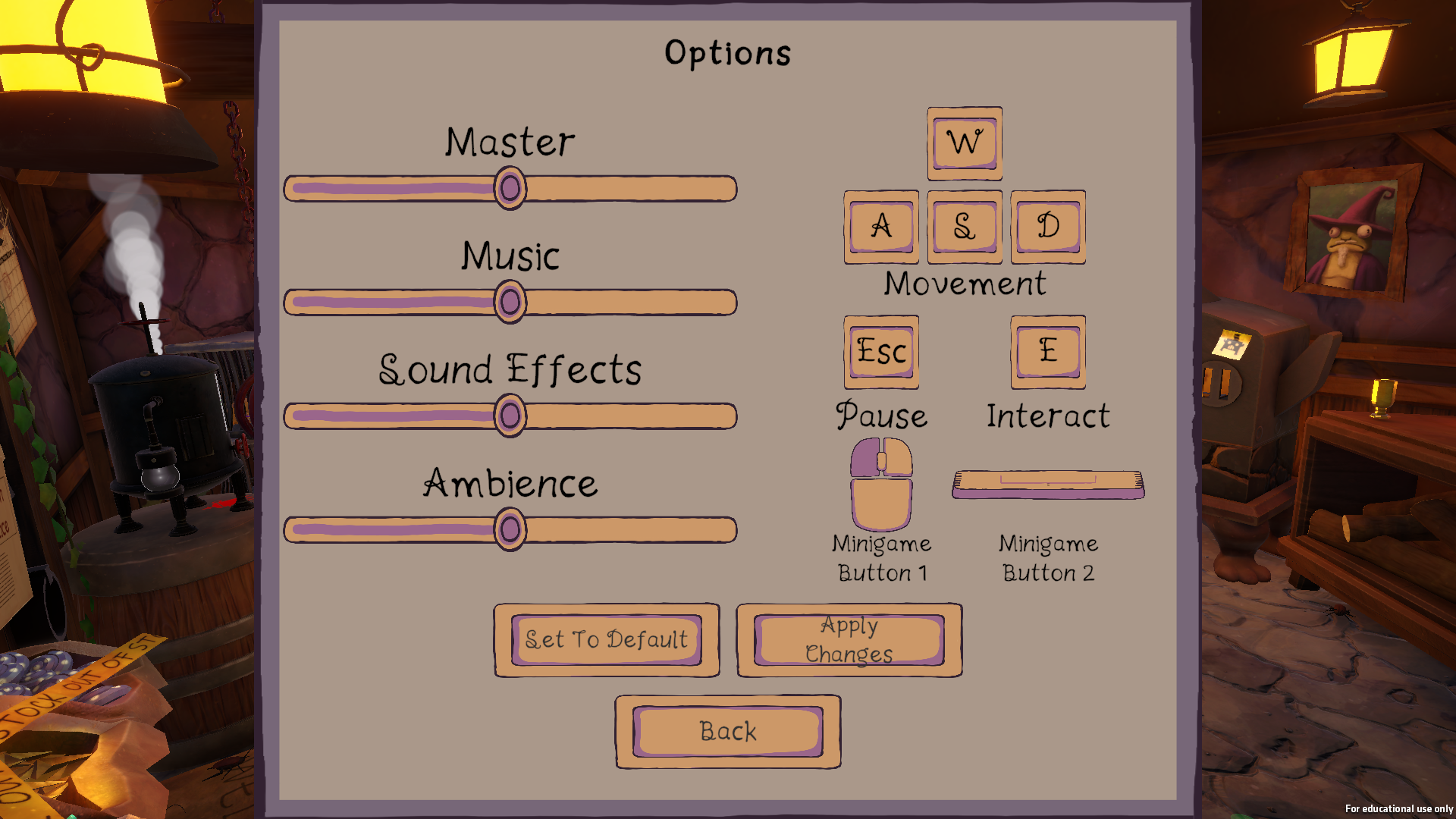
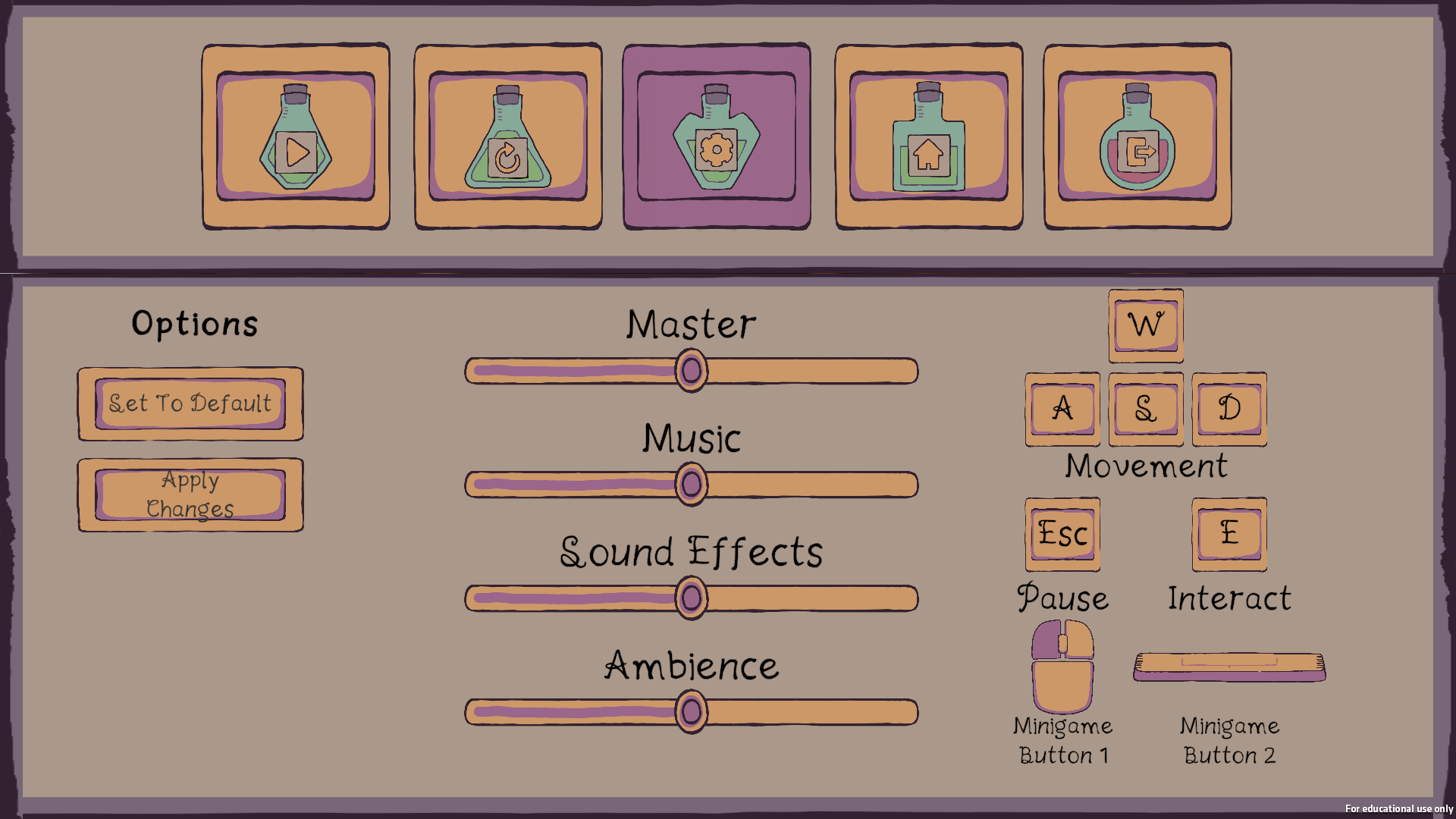
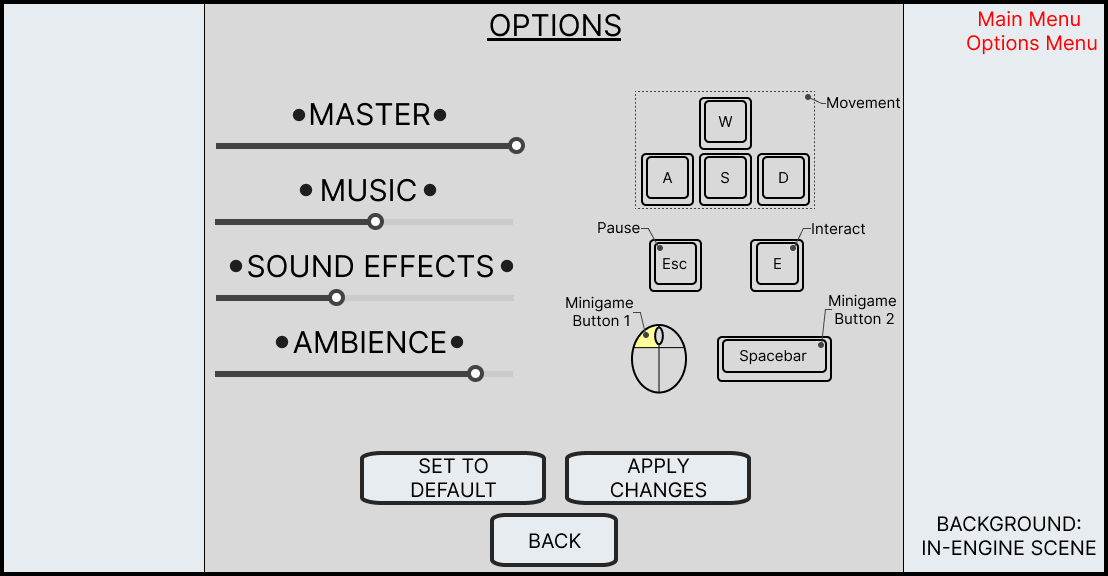
Unfortunately, due to time constraints in the later stages of the project a lot of what was planned for the project’s options had to be scrapped. It is also important to note that an alternative options menu was created for the pause menu to conform to the pause menu’s different layout.
Originally the options menu would have been subdivided into four submenus; those being Game, Video, Audio and Controls. Controls was the first to go since as the project progressed we realised that the player would need less inputs than expected, so we replaced the Keybind options with a control map that displayed all the keys needed and what they did.
In the end the options menu was reduced to audio settings and a control map as our project at this time had many ongoing issues with the core gameplay that took priority over other features.
In-Game Main Option Menu
In-Game Main Option Menu
Main Option Menu Wireframe
Pause Option Menu Wireframe
CREDITS LIST
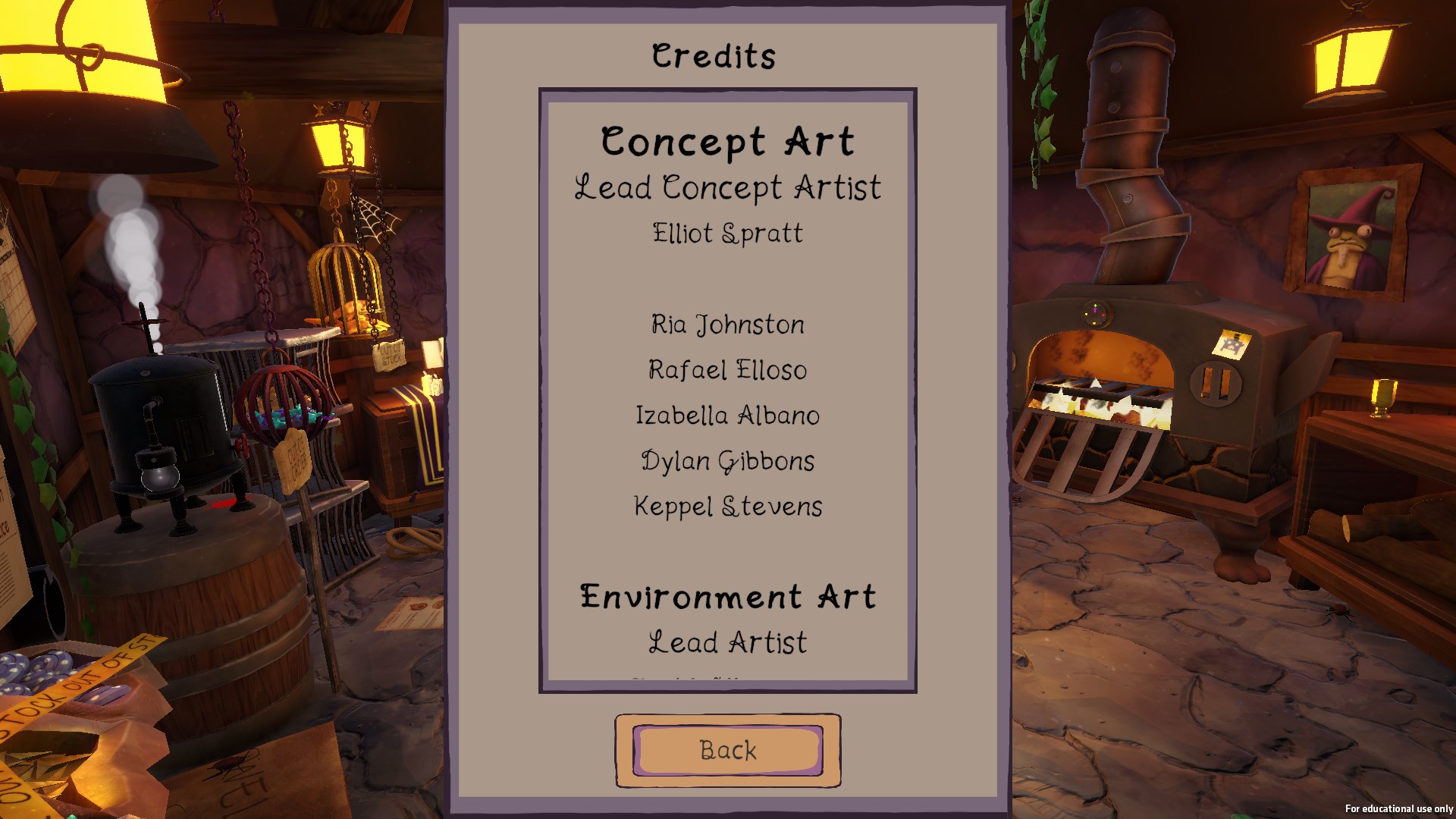
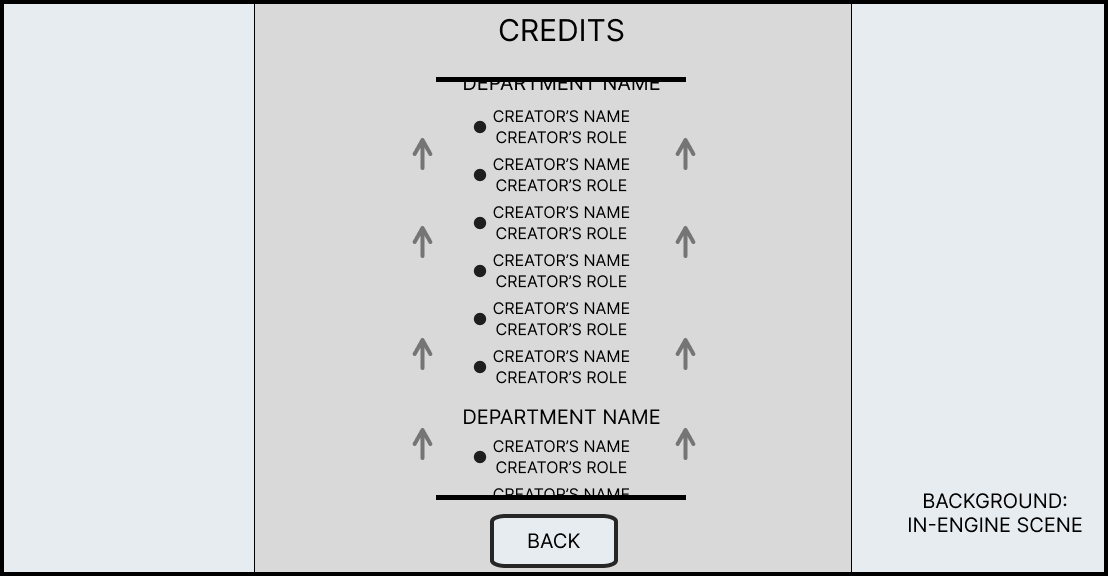
There was a bit of a difficulty when coming up with the layout of the credits. Traditionally with university projects all names were placed on to a single screen/page, however, that wouldn’t work with this project. This is because not only was this a team of 30 people, but a lot of our team were doing multiple roles such as how our lead concept artist was also the lead of sound effects. This meant that a new design had to be created to accommodate these variable.
In the end after multiple versions were shared to the team, we ended up chooses an option that was inspired by a traditional credits list you would find in any contemporary game where a list of names is scrolled past the screen. This allowed for people to be properly credited for the work that they did instead of giving them a credit that was very generalist and did not accurately represent the work they contributed.
In-Game Credit List
Credit List Wireframe
Main Menu Credit Button Wireframe